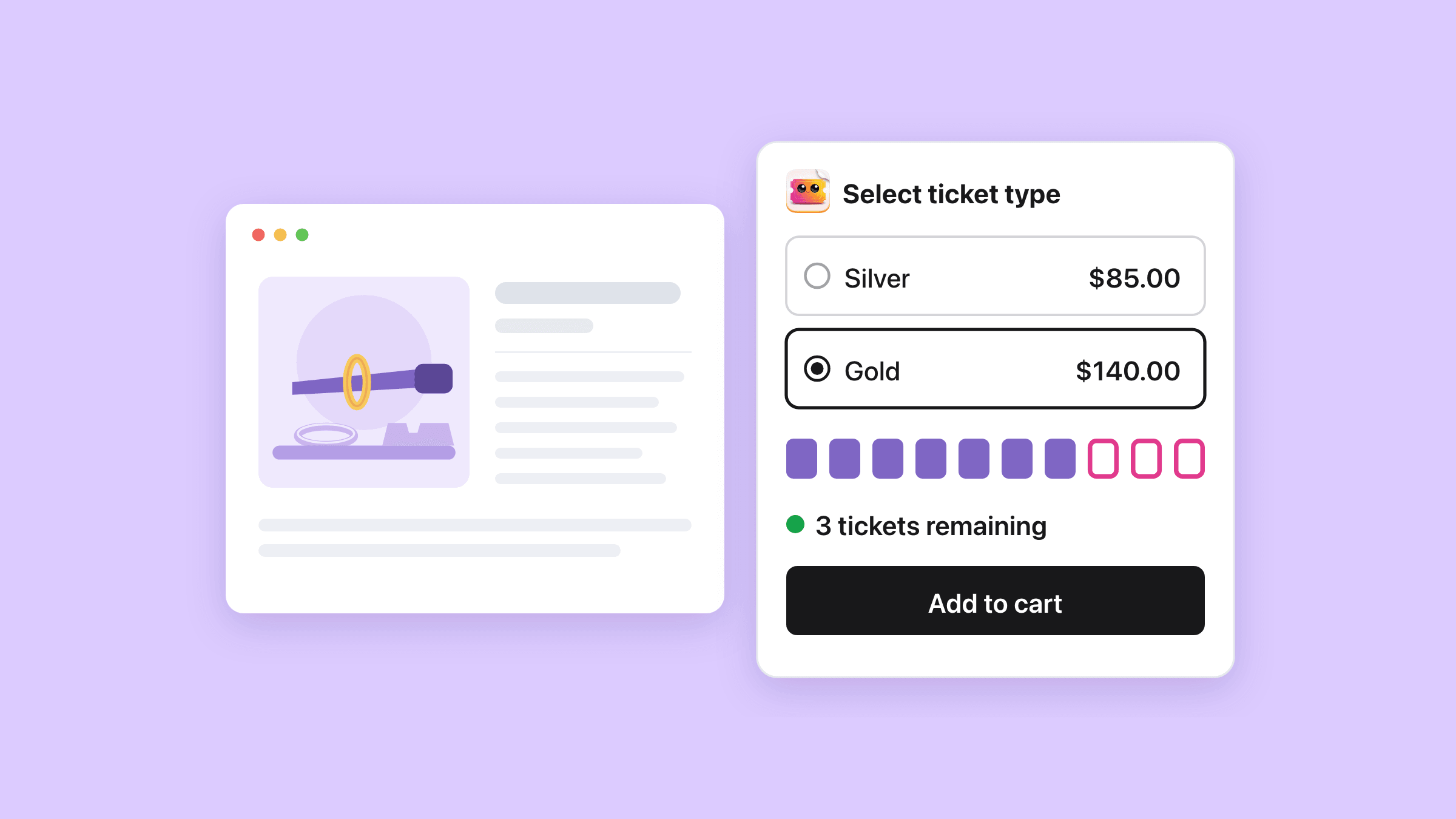
Easy Tickets & Events adds a Shared inventory switch to general-admission events on Shopify, on every plan including Free. Then all ticket types sell from one number of places, so a Gold sale lowers what is left for Silver. When the pool is empty, every type sells out.
On this page
- Why do ticket types oversell one room on Shopify?
- How do you share one capacity across ticket types?
- What counts against a shared pool?
- What does the shopper see when ticket types share a pool?
- What does Shopify’s own stock show for a shared pool?
- Does each date of a series get its own shared pool?
- Does shared inventory work with reserved seating?
- What this does not do
- How do you set it up?
- Who uses this?
- What should you read next?
- Common questions
Why do ticket types oversell one room on Shopify?
Because each ticket type is its own Shopify variant with its own stock number, and each number caps only its own type.
Separate stock oversells the room or strands places
The limit you care about is the room, and no ticket type knows how full the room is.
- Give Silver 10 and Gold 10 for a room of ten benches, and the page can sell twenty places.
- Split the room instead, five and five, and Gold can sell out while five Silver benches sit empty.
A jewellery workshop asked for one number across two materials
A jewellery maker asked about exactly this on the Shopify Community forum in August 2024. They sell Gold and Silver at different prices, and wanted “to limit the booking to 10 participants total, regardless of the material choice.”
That one number is what the pool gives you.
How do you share one capacity across ticket types?
Switch on Shared inventory at the top of the event’s Tickets tab, then give the whole event one number of spots.
The pool on the Tickets tab takes 1 to 1,000,000 spots. It never goes below the most places already sold on one date.
Shared inventory sits above the table of ticket types
Open the event’s Event settings and stay on the Tickets tab, where the switch sits at the top of Ticket types & pricing.
Building the event from scratch? Create event has the same switch in its Ticket types section, with a Total inventory box that starts at 100 on a new event.
A dialog shows the numbers before anything changes
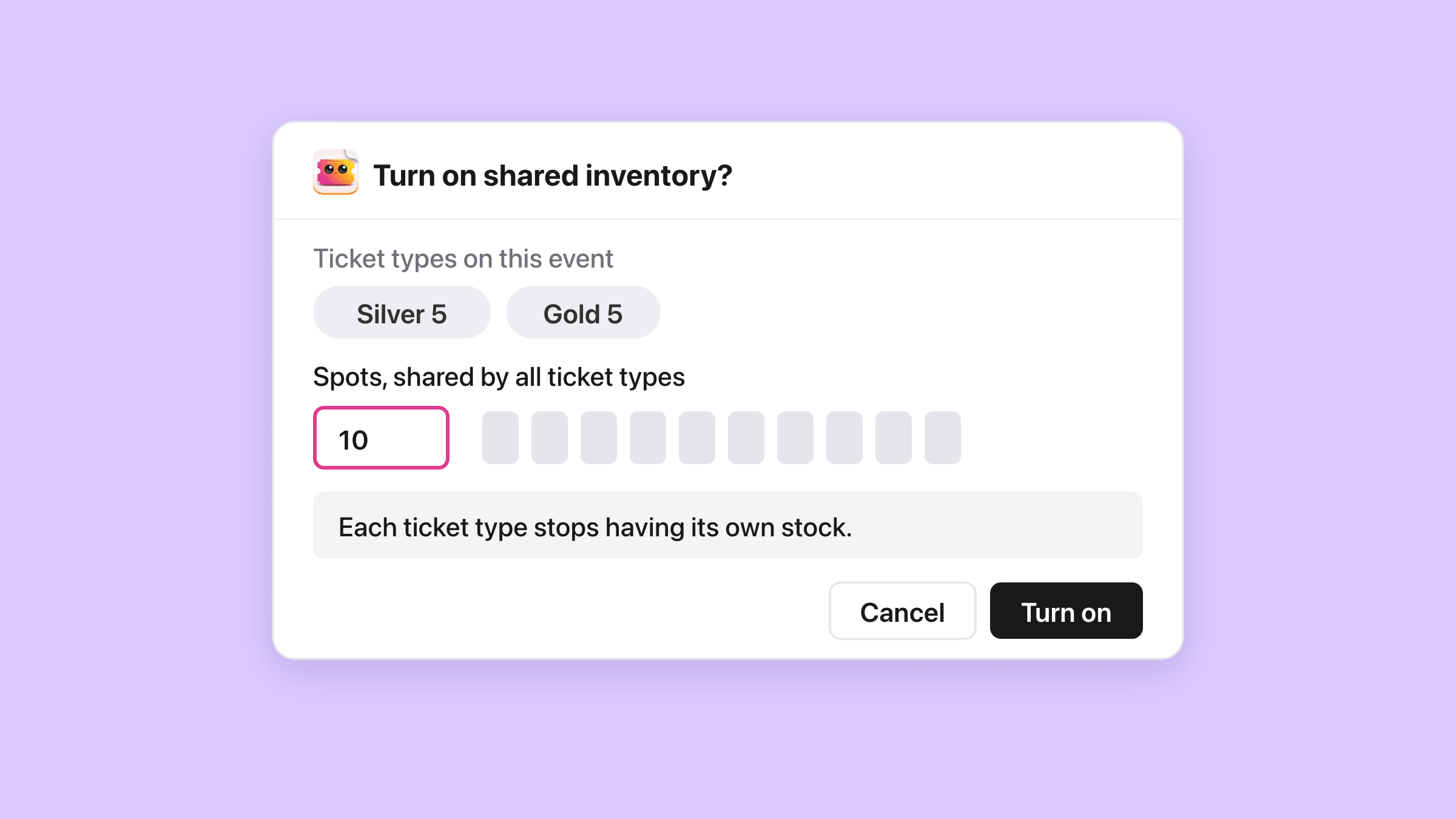
Flipping the switch saves nothing yet. A dialog titled “Turn on shared inventory?” lists each date with its spots and sales, and each ticket type with its stock.
The field for the pool starts at the largest capacity the event has today. Select Turn on, and every type sells from that number at once.
Later, change the pool in the Total spots box beside the switch and save.
Each type’s own stock is kept for later
While the pool is on, the Inventory box disappears from Add ticket type and from Edit. A type you left with no cap is capped by the pool as well.
Turn the switch off again and every ticket type gets its previous stock back, with Shopify’s stock updated to match.
- A type added while the pool was on has no stock of its own to return, so it gets an even share of the pool.
- A type that has sold can never be deleted. To stop selling it, turn the pool off first, then lower its Inventory in Edit.
What counts against a shared pool?
One purchase of any ticket type takes one spot, and add-ons take none.
A spot is one purchase of one ticket type. A group ticket that admits four people, or a bundle sold as a table of ten, still takes a single spot.
Group tickets and table bundles take one spot each
The pool counts purchases, not people.
So size the pool in purchases. If your workshop also sells a ticket with Group size 2, ten spots can seat up to twenty people.
Your plan counts the other way. Every ticket issued uses one of your monthly tickets, so a group of four uses four.
Add-ons never touch the pool
A drink, an apron or parking sold as an add-on keeps its own stock on the Options tab. Selling one leaves the pool exactly where it was.
Free registrations, class passes and the till draw from it
Three other ways of issuing a ticket read the same pool.
- A free registration checks the pool before it confirms a place.
- A class booked with a class pass takes a spot, like a paid ticket.
- The app’s ticket screen in Shopify POS shows each type with the places the pool has left.
What does the shopper see when ticket types share a pool?
Every ticket type shows the same availability, and when the pool reaches zero they all read “Sold out” together.
The tickets-left counter shows the pool
Add the Event Available Inventory block to your product template, and it prints what the pool has left, “3 tickets remaining” in its default wording.
Leave its Show setting on Total remaining. Per ticket type would print the pool’s number again on every line, because no type has a count of its own.
- The dot beside the count turns amber at 20% of the pool or less, and red at zero.
- The quantity stepper stops at the places the pool has left.
- On a series with two or more types, each date in the picker reads “3 spots left for this date, any ticket type” at ten or fewer, and “12 available” above ten.
An empty pool sells out every type at once
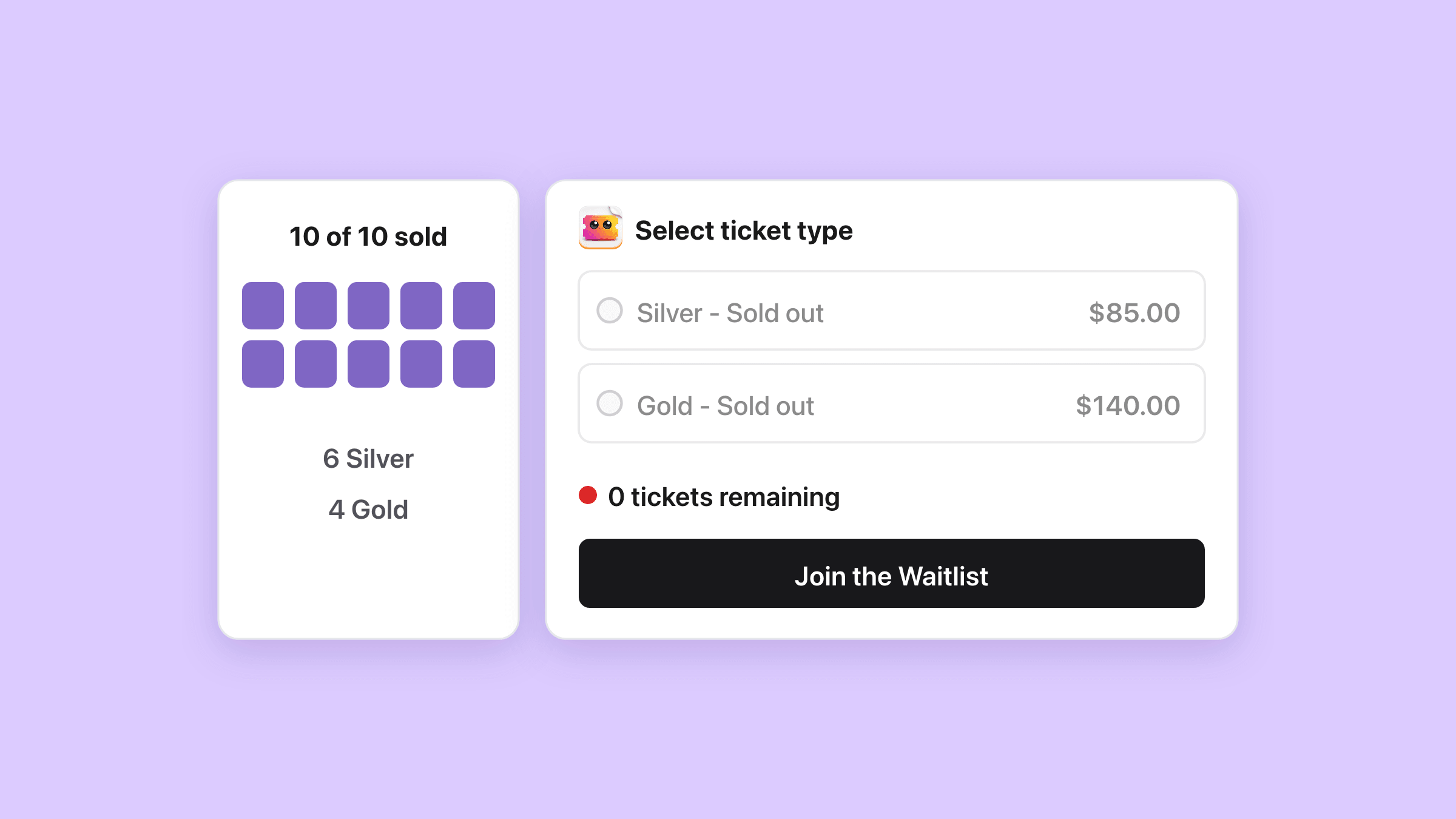
Say six Silver and four Gold fill the ten benches. Neither type keeps a number of its own, so both rows turn “Sold out” when the tenth place goes, whatever the mix.
With the waitlist on, the default for new events, the buy button then reads “Join the Waitlist”. The waitlist collects names for that event or date.
The Spots left column on the Waitlist tab counts the pool as well.
What does Shopify’s own stock show for a shared pool?
On a one-time event, every ticket variant shows what the pool has left, because the app writes that number onto each one after every order.
Each variant carries the pool’s remainder
Shopify itself has no idea that two ticket types share a room. So the app sets each variant to the spots minus what is sold, which is what the dialog promised.
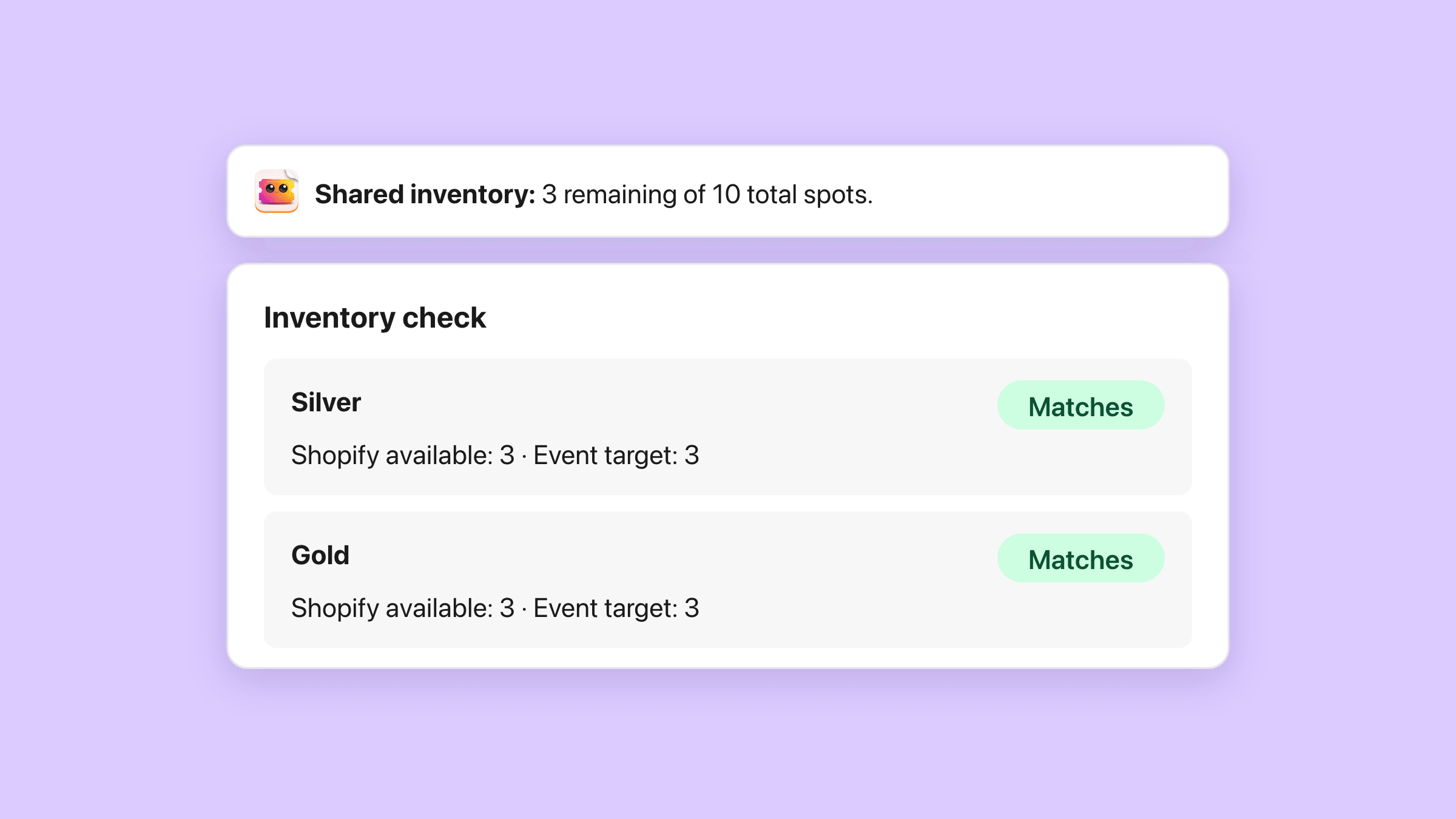
With seven of ten sold, four Silver and three Gold, both variants show 3 in Shopify. The app writes at the location chosen under Ticket inventory location in Settings.
Refunds and cancellations put the place back
A refund in Shopify, a cancelled order or an order edit that removes tickets frees their spots. The app then writes the new number to Shopify.
Cancel ticket on the event’s Attendees tab frees the spot as well, though a ticket cancelled there does not come back to your monthly count.
A refused write shows on the event page
When Shopify turns down two stock writes in a row, the event page shows “Shopify would not update the stock for this event”.
- Check inventory, in the app’s block on the event’s product page in Shopify, opens the Inventory check.
- Each ticket type reads “Shopify available: 3 · Event target: 3” with a “Matches” or “Different quantities” badge.
- Retry inventory sync, then Confirm inventory sync, writes the app’s numbers to Shopify.
Does each date of a series get its own shared pool?
Yes, every date gets a pool of its own at the same size, set once on the series.
That holds for a weekly class and for three time slots on one Saturday alike.
A pottery evening shares 8 wheels between a drop-in price and a member price every Tuesday. The quiet Tuesday before Easter gets 6 on Time slots, until the next change to Total spots puts it back to 8.
Twenty spots per date means twenty on every date
The Tickets tab says so in a banner once a series has two or more ticket types. It reads “Each time slot gets its own pool of 20 spots shared across all ticket types.”
The switch belongs to the series. A single date shows “Shared inventory is set on the series, not on a single date.”
One date can take its own number on the Time slots tab
Open Time slots and select the pencil in a date’s Sold / Capacity column. With a pool, Edit capacity asks for one number, Total tickets for this time slot.
That number lasts until you next change Total spots or turn the pool on again, because both rewrite every date.
Shopify follows the date with the most spots left
Every date sells through the series’ one product, so each variant carries the largest number left on any upcoming date. The app stops each full date on the product page itself.
Does shared inventory work with reserved seating?
Not as a switch, because on a seated event the seat map is already the one pool of places.
Each price area is shared by the ticket types sold in it
On the Reserved seating tab, every price area sells through one or more ticket types. Put Adult and Child in the same area, and the shopper picks a type for each seat in it.
One seat is one admission
The Ticket prices by area section puts it in one line: “One seat is one admission.” A pool counts a group ticket once, while a map counts every seat.
Reserved seating covers the maps, the price areas and the seat hold.
What this does not do
- No share held back for one type. A pool cannot keep 20 places for VIP while everyone else shares the rest.
- No minimum or maximum per type inside the pool. Any mix sells, down to all Gold.
- No pool across two events. Each event, and each date of a series, has its own.
- No switch per date. The pool is on or off for the whole series.
- No pool on a seated event, where the seat map is the stock.
- A group ticket of four takes one spot, because the pool counts purchases.
- No count of its own for each ticket type while the pool is on. Every type shows the pool’s number.
- A number typed for one date on Time slots is replaced the next time Total spots changes.
- Shopify does not know the ticket types share a pool. The app resets each variant’s stock after every order.
- A ticket type that has sold cannot be retired while the pool is on. The pool has to go off first.
How do you set it up?
Add a ticket type for each price
Select Create event, choose General admission and add one ticket type per price, such as Silver and Gold. Keep Group size at 1 when the room counts people.
The Ticket types section of the form has the Shared inventory switch too, with a Total inventory box beside it.
Found under Easy Tickets & Events > Events > Create event.
Switch on Shared inventory
On an existing event, select Event settings and stay on the Tickets tab. Turn on Shared inventory at the top of Ticket types & pricing.
Check the number in the dialog and select Turn on. You can change it later in Total spots, then save.
Found under Easy Tickets & Events > Events > [your event] > Event settings > Tickets.
Give one date a different number
On a series, open Time slots and select the pencil in a date’s Sold / Capacity column. Edit capacity then asks for Total tickets for this time slot.
Skip this step on a one-time event, where the pool is the whole event.
Found under Easy Tickets & Events > Events > [your event] > Time slots.
Show the places left on your product page
Let's finish on the storefront. In your theme editor, open the product template, select Add block and choose Event Available Inventory, with Show left on Total remaining.
The ticket types and inventory guide covers every stock setting.
Found under Shopify admin > Online Store > Themes > Customize > Products.
Who uses this?
Jewellery and craft workshops
Ten benches, Silver and Gold at two prices, and the workshop fills in whatever mix people book.
Fundraisers and charity dinners
Three donation tiers at three prices, all sold against the same hundred places.
Read the guideTours and tastings
Adult, child and member prices on one departure, with the seats on the bus as the number every date counts down.
Read the guideClasses and studios
A drop-in price and a member price for the same eight wheels, with a pool of its own on every date.
Read the guideWhat should you read next?
Time slots and timed entry
Each sitting keeps its own seats, and with a pool, one number that every ticket type on it shares.
Reserved seating from a seat map
When the room has numbered chairs, the map is the pool and each price area shares its seats.
Waitlist for sold-out events
What the buy button becomes when the pool runs out, and how people wait for a date.
Prevent overselling on Shopify
The same stock question for physical products, from inventory tracking to a safety floor.
See every Easy Tickets featureRead the setup guide in the manual