Easy Tickets & Events sells time slots from one Shopify product page, on every plan including Free. Every start time becomes its own sitting with its own seats and its own waitlist, so selling out 11:00 leaves 14:00 alone. Shoppers pick a date, then a time.
On this page
- How do you sell three time slots on the same day?
- Does each time slot have its own capacity?
- Can an add-on sell out on one date and not another?
- What does the shopper actually see on the product page?
- Does a series sell from one product, or one product per date?
- What if a customer cannot make their time slot?
- What this does not do
- How do you set it up?
- Who uses this?
- What should you read next?
- Common questions
How do you sell three time slots on the same day?
You build the day once, when you create the event.
Set the event type to Recurring event. The Schedule question then offers two paths: Repeating pattern, or Specific dates I choose.
Repeating pattern builds the timetable from a rule
The repeating path takes a first date, a last date, a frequency and the times of day. Under Time slots, select Add time slot once per sitting, so 11:00, 14:00 and 17:00 become three rows. Different times per day lets Saturday run three and Wednesday one.
A repeating pattern generates at most 365 dates in one series. A daily tour reaches that in a year. A weekly class would take seven.
- Frequency is Daily, Weekly with the weekdays you tick, or Monthly.
- Schedule preview (N sessions) counts the sittings before you save. It lists six with a line counting the rest, and Show all opens the first fifty.
Specific dates cover one busy Saturday
The specific-dates path suits a single busy day - add the Saturday and select Add another time twice. Each time gets its own seat count afterwards, on the Time slots tab.
Three sittings, one product page, separate seats
Either way you get three sittings on one product page, sharing the ticket design, the check-in PIN and the guest list.
They do not share seats.
- Each sitting becomes a row on the Time slots tab. Edit in the row menu opens Edit time slot, where the location fields give that one sitting a venue of its own.
Does each time slot have its own capacity?
Yes, the seat count belongs to the sitting.
A sitting, or time slot, is one dated copy of the event. It has one date, one start time, and its own seats, guest list and waitlist. Three sittings on a Saturday are three of them, sold from one product page.
Seats per ticket type, or one shared pool
Open the Time slots tab and select the pencil on a row, which opens Edit capacity for that one time. Hold the number per ticket type - 40 general, 8 VIP - or switch the event to one shared pool that every type draws from.
On a series the pool is per sitting, so “20 per date” means 20 at 11:00 and another 20 at 14:00.
The count is live, in the admin and on the storefront
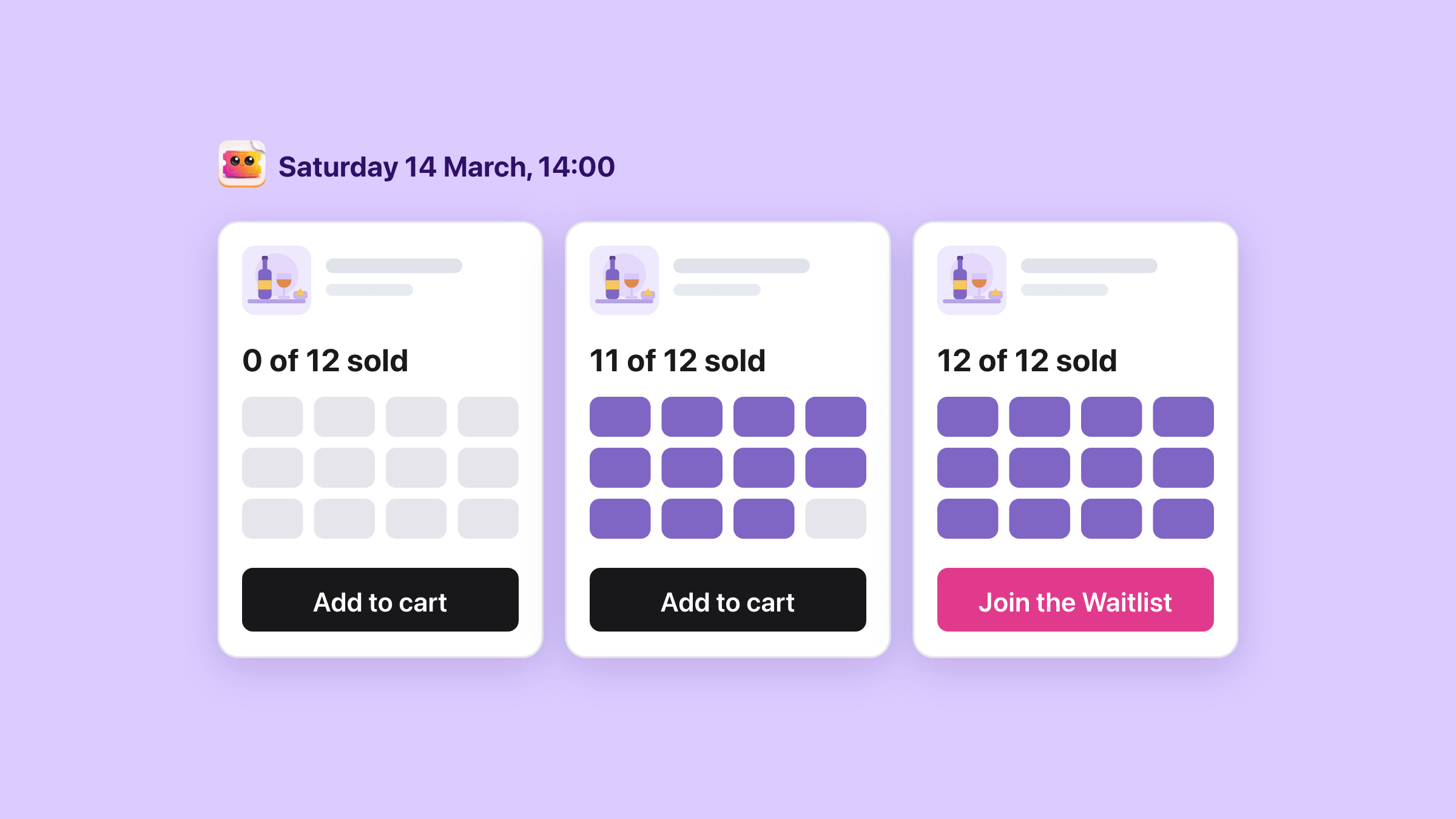
The number a shopper reads is the app counting live tickets on that sitting, not a Shopify stock figure that drifts. Cancel a ticket, refund the order in Shopify, or edit the order down, and the seat goes back on sale. The people waiting for that sitting get told.
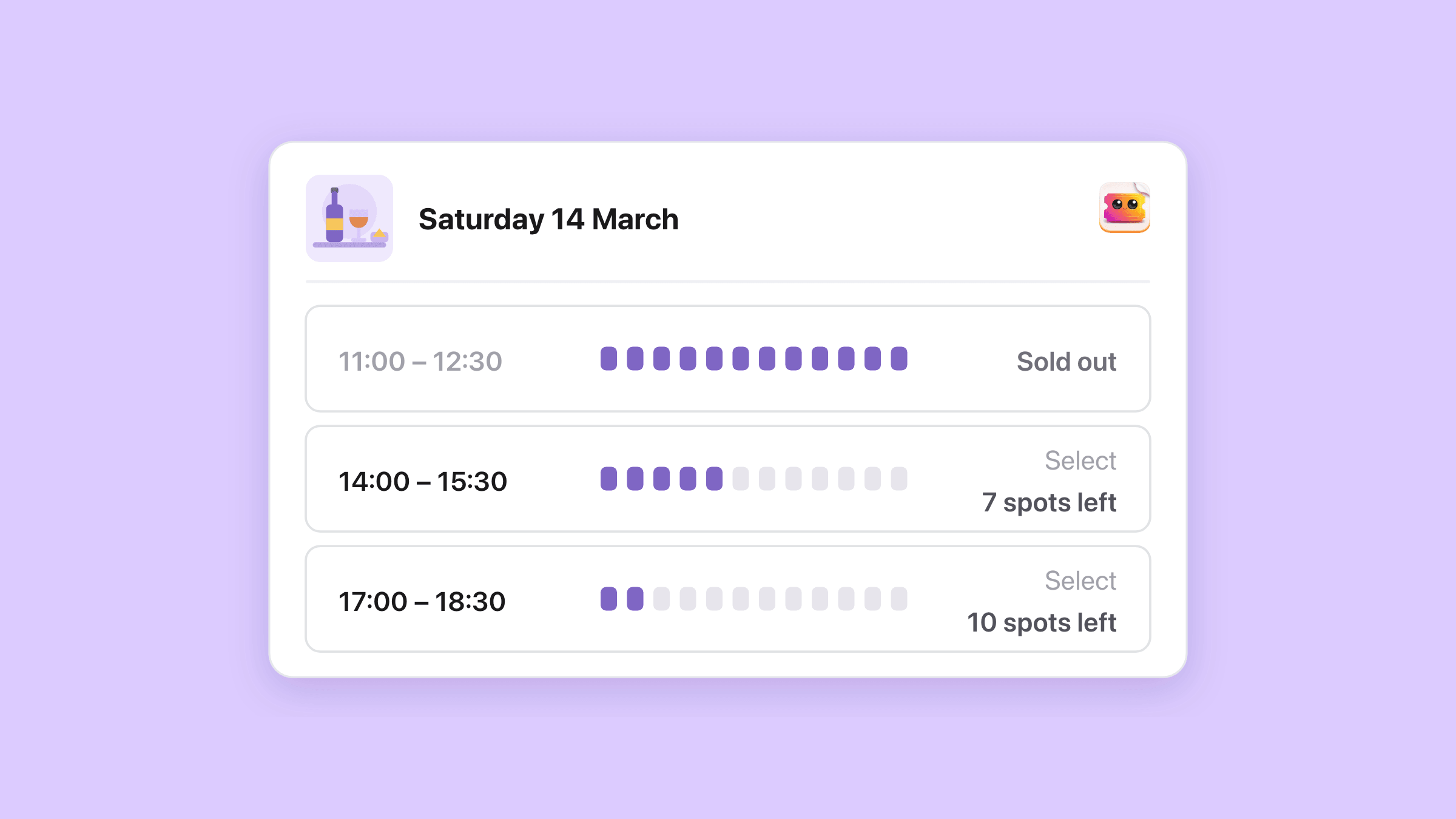
- Sold / Capacity is a column on every Time slots row, so a full sitting shows before anyone complains.
- The Event Available Inventory block prints the count in your own wording, and on a series it follows the date the shopper picked.
- Slot chips read “7 spots left” up to ten, and say “for this date, any ticket type” when one pool sits behind several types.
Can an add-on sell out on one date and not another?
Yes, and it is one setting rather than two events, because an add-on carries an Inventory per time slot number.
Each date can carry its own number
Edit one choice and give a date its own figure under How many each date can sell - 20 cheese boards on Friday, 8 on Sunday. The Stock status column on the Options tab shows what is left.
A guided tour that includes lunch: the option carries 40, so every date carries 40. Give the Sunday you share the kitchen its own 12, and put a 0 on the day the kitchen is shut.
A 0 closes the add-on for that date
A 0 on an add-on closes that choice on that date.
On a ticket type a 0 means no cap instead, which is what the hint under the field says.
What does the shopper actually see on the product page?
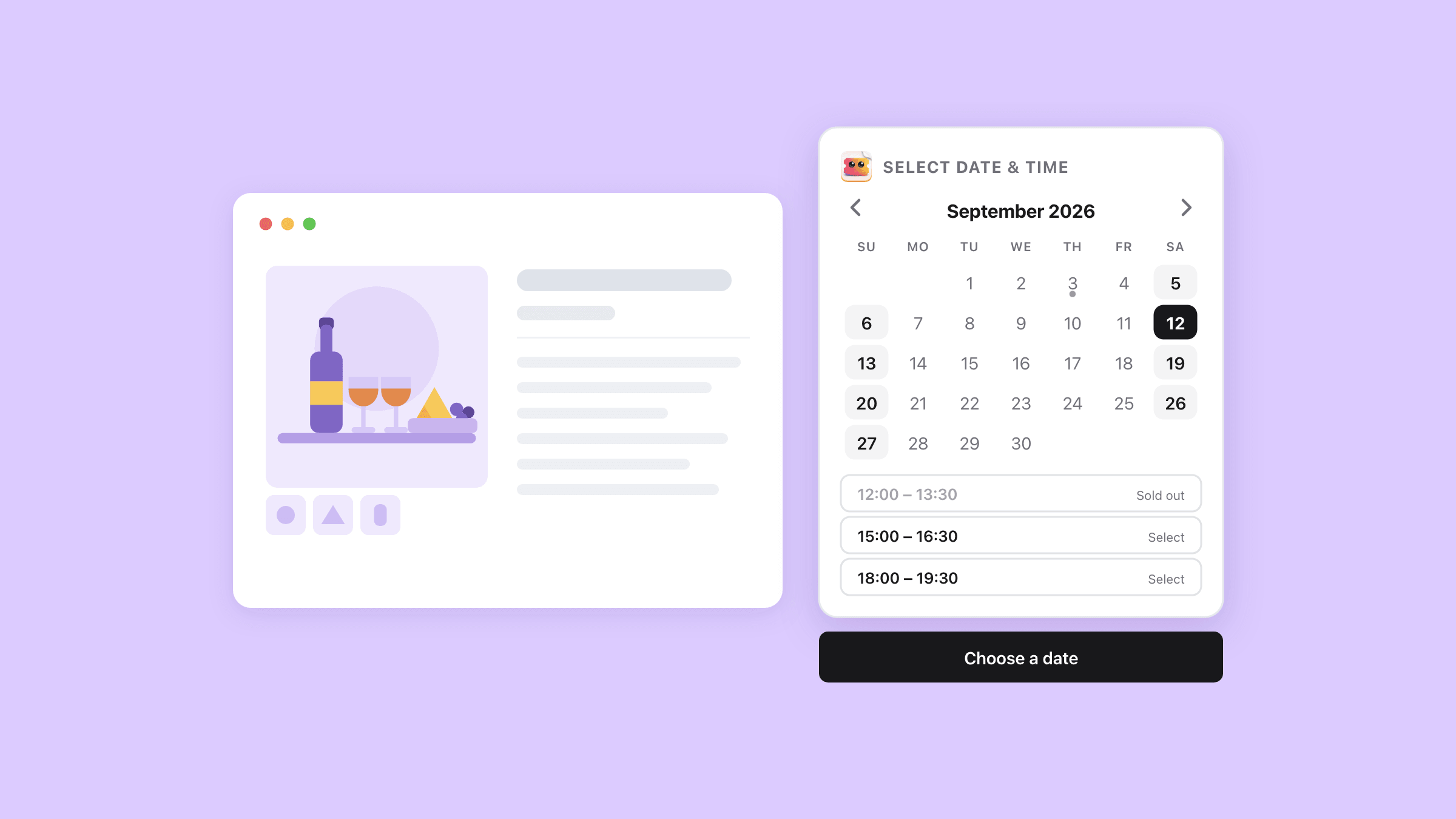
A Date & time picker block, which you drop into your product template, with its Style setting offering Calendar, Date list or Dropdown. You place it and pick a style in the theme editor, and the three suit different timetables.
The shopper picks a day, then a sitting
Choose the day and the sittings appear underneath as chips. Each chip shows the time range, a “Select” label, and either “Sold out” or how many spots are left.
The buy button waits for a date
Pick one and the chip says “Selected”; until then the buy button reads “Choose a date”. A shopper who presses it anyway is scrolled back to the picker, with a line saying “Please choose a date first”.
Three styles, and where each one shows sold out
One thing to know before you pick a style.
The month grid shades the days that have a sitting, and it does not mark a day whose sittings have all gone. You see that when you open the day.
Date list puts “Sold out” on the row itself, and Dropdown appends it to the menu entry. A timetable that sells out unevenly reads better in one of those two.
- Calendar is a month grid, and it is what you get if you never place the block at all.
- Date list stacks every date in one scrollable column; Dropdown puts the timetable in one menu and takes the least room on a phone.
- A sold-out sitting stays pickable on purpose. With the waitlist switched on for the event, the app hides your theme's own buy button and puts its own “Join the Waitlist” button beside it, worded however you set it.
Let's try it. Pick a Saturday, then a time.
Does a series sell from one product, or one product per date?
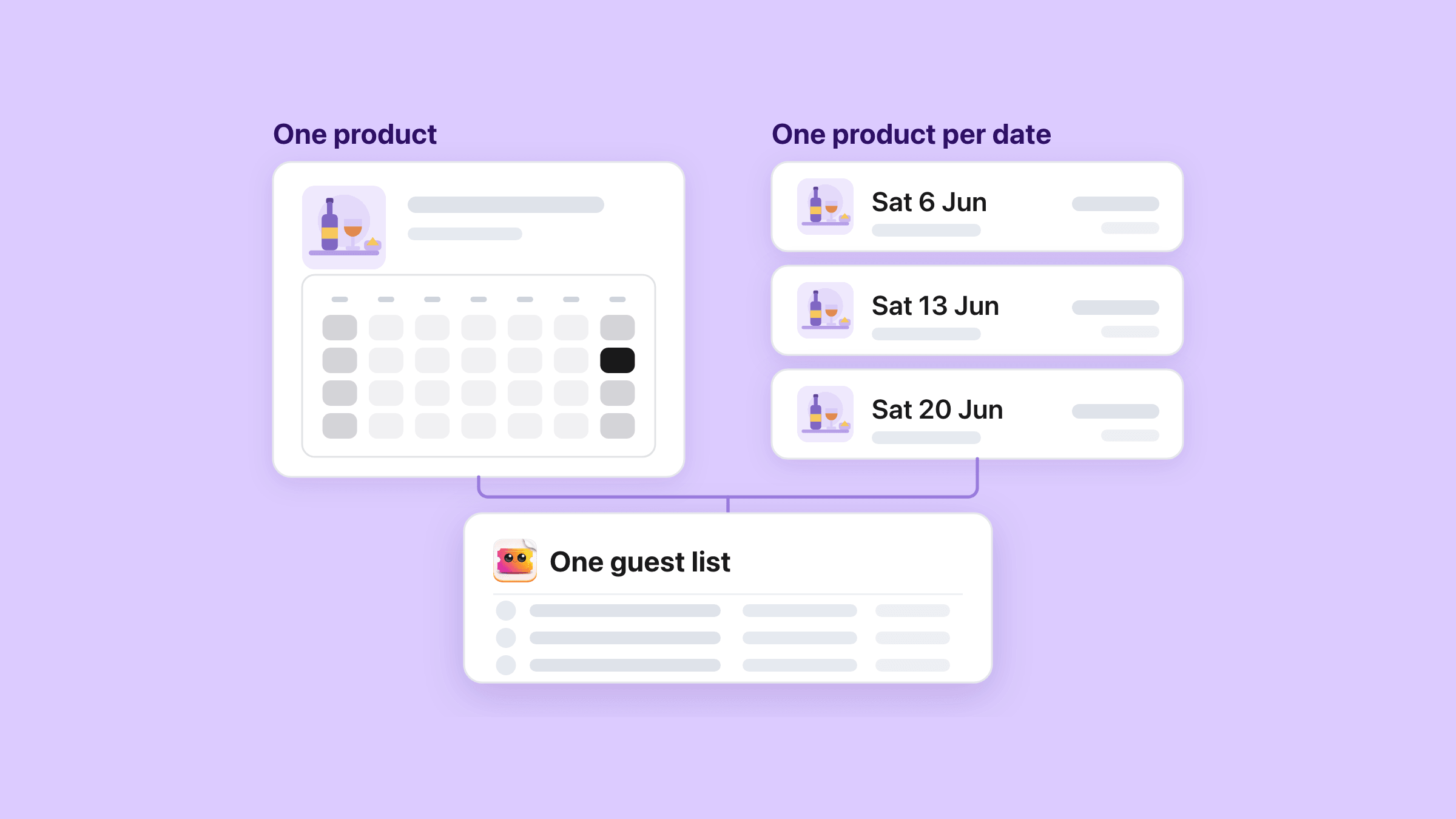
A time-slot series sells from one product, with the picker this page is about.
The create form no longer asks, because every new general-admission series is built that way. Reserved seating is the exception: a seated series gets a real Shopify product for every sitting.
- One product keeps every date on a single page, with the picker doing the choosing.
- A product per date gives each seated sitting its own product page, seat map and seat sales switch.
- Guest list and CSV export read the whole series either way. The printed door sheet covers one sitting - the date you pick, or the next one coming up.
One product keeps the reviews and the ranking together
One product keeps your reviews, images and ranking on one URL, and a shopper comparing three start times never leaves the page.
Reserved seating gets a product per date
On a reserved seating series the Storefront display question comes back, set to Separate product page per date. Each sitting sells its own seats from its own map, so it needs a product of its own.
The shape is fixed when you create the event
There is no control on the event to change it afterwards. Older events keep the shape they were made with.
What if a customer cannot make their time slot?
There are three ways out and none of them needs a refund.
1. The customer moves themselves, up to the cutoff you set
The setting Let customers change their date is off until you switch it on. Then a ticket holder moves themselves from their own ticket page. You set when that closes - one day, two days, three days, a week, two weeks or three weeks before their sitting.
A ticket can move three times before the holder has to write to you.
- A self-service move only offers other dates of the same series, never another event.
2. You move them from the guest list
You can also move someone yourself from the guest list. Move to another date offers the sittings that still have room and disables the full ones. The QR code stays alive, so the link already in their inbox still works.
- You can move a checked-in ticket yourself, and the check-in is undone so they scan again on the new date. A ticket holder cannot: their own date change is refused once the ticket has been scanned.
- Nothing here issues money back. Refunds stay in Shopify, and the app follows them.
3. Waiting for a date frees the seat and tells the waitlist
And when nobody knows the new date yet there is Waiting for a date. It takes the ticket off the sitting, puts the seat back on sale and tells the waitlist. The ticket waits in the Waiting for a date filter until you give it a new date.
What this does not do
- The date picker sells a place in a sitting. Chosen chairs are reserved seating, its own setup, and a seated series sells one Shopify product per date.
- Class credits are their own setup too. With class packs a customer buys the pack once, then books each sitting from their pass.
- No course booked as one unit. A six-week course is six sittings, each booked on its own, even with a class pack.
- Every date sells at the series price. A general-admission series has no price per date.
- One shape per series. A general-admission series always sells from one product with the picker, and no control changes that afterwards.
- The month grid does not mark a sold-out day. The “Sold out” label sits on the sitting under the day, on the row in Date list style, and in the menu entry in Dropdown style.
- Every two weeks is not on the Frequency menu. Daily, Weekly and Monthly are, and the rest goes in through Specific dates I choose.
- You set a Last date when you create the series. A pattern generates at most 365 dates.
- A ticket bought as part of a group, claimed by a link, cannot be moved to another sitting on its own.
- No rain check button. Cancelling a sitting and re-dating its guests are two jobs, one ticket at a time.
How do you set it up?
Create the event and make it recurring
Select Create event, choose General admission, name the event and set the event type to Recurring event. That is the type that carries a schedule, whether the timetable runs for one Saturday or all year.
Found under Easy Tickets & Events > Events > Create event.
Put the times in
The Schedule question takes Repeating pattern for a timetable that follows a rule, or Specific dates I choose for a hand-picked list.
On the repeating path, set the first and last date, pick the frequency, then add each start and end time under Time slots. Read the Schedule preview before you save.
On the specific-dates path, add a date and select Add another time for each sitting. Seats per sitting come next, on the Time slots tab.
Found under Easy Tickets & Events > Events > Create event > Schedule.
Give each sitting its seats
Open the event and go to Time slots, where each sitting is a row with a Sold / Capacity column. The pencil on the row opens Edit capacity for that one time, per ticket type or as one pool.
The row menu is where you cancel a sitting, restore it, or duplicate it into a new date. It also opens Edit time slot, where you change the times or give that one sitting a location of its own.
Found under Easy Tickets & Events > Events > [your event] > Time slots.
Place the picker on your product page
Let's finish on the storefront. In your theme editor, open the product template, select Add block and choose Date & time picker. Drag it where you want it and set Style to Calendar, Date list or Dropdown.
The recurring and time-slotted events guide covers the rest of the settings.
Found under Shopify admin > Online Store > Themes > Customize > Products.
Who uses this?
Tasting rooms and breweries
Three sittings on a Saturday, twelve seats each, a cheese board capped at eight on Sunday. Each sitting prints its own door sheet.
Museums and attractions
Timed entry every half hour to keep the rooms comfortable, with the scanner listing who is due for each sitting.
Tours and experiences
A 09:00 and a 14:00 departure with different capacities, and a sold-out morning that sends people to the afternoon.
Read the guideWorkshops and classes
A pottery evening every Tuesday and Thursday, with the Thursday room holding four more people than the Tuesday one.
Read the guideWhat should you read next?
Run recurring classes and workshops on Shopify
The same timetable seen as a business, from the weekly register to the door.
Class packs and class passes
Sell a pack of classes once, and let regulars book each sitting from their pass.
Reserved seating from a seat map
When the sitting has numbered chairs, the shopper picks their own seats on your product page.
Waitlist for a sold-out sitting
What the buy button becomes when the last seat goes, and how the people waiting get told when one comes back.
Recurring and time-slotted events in the manual
Every schedule setting, the overrides a single date can take, and how a change reaches the dates.
Every Easy Tickets feature, in one list
The full inventory grouped by job, with a page or a guide behind each row.
See every Easy Tickets featureRead the setup guide in the manual