Short answer
How do you hide out-of-stock products without an app?
Turn inventory tracking on for the products
Shopify puts this before the steps rather than inside them, and it is the reason the whole method works: a collection can only filter on a stock number if there is a stock number to read. The setting sits on each variant, in the Inventory section of the product.
If it does not work
Most of the sold-out products disappear and a handful stay put. Those are the untracked ones. Shopify reports no quantity for a variant with tracking switched off, so a rule that filters on quantity has nothing to match and leaves the product exactly where it was.
How to undo it
Switch tracking back off on that variant. The collection rule stops applying to it from the next update, and nothing else about the product changes.
Open the collection and check it is an automated one
Products, then Collections in your Shopify admin, then open the collection you want to clean up. A manual collection holds a hand-picked list and cannot filter on anything, so the conditions box only appears on an automated one.
If it does not work
There is no conditions box anywhere on the screen. That collection is manual, and no amount of looking will produce the setting. The fix is a new automated collection rather than an edit to this one.
How to undo it
Nothing has been changed yet. Leave the collection without saving.
Add the stock condition, then set the collection to match all conditions
Shopify's own steps for this are two lines. For Inventory stock, select is greater than and enter 0. Then select Match all conditions. That second line is doing as much work as the first, and it is the one that gets skipped.
If it does not work
You save the condition, load the storefront, and the sold-out products are still sitting there. The collection is almost certainly still set to match any condition.
Shopify's own note says it plainly: "This solution for hiding out of stock products won't work if you set Products must match to any condition."
Open the collection again and read the Products must match setting sitting above your conditions.
How to undo it
Delete the condition and save. Everything that was in the collection comes back, in the same order it was in before.
Do your Catalog page separately
Your store ships with one collection that lists everything you sell, and Shopify calls it the Catalog. It does not obey the rule you just wrote on your other collections. Shopify's route is to take control of that page with a collection of your own and put the same two conditions on it.
If it does not work
You clean up every collection you can find and sold-out products still turn up behind one link in your navigation. That link is nearly always pointing at the default Catalog page rather than at a collection you built.
How to undo it
Point the Catalog page back at the default and the original listing returns unchanged.
What does Shopify do with a sold-out product on its own?
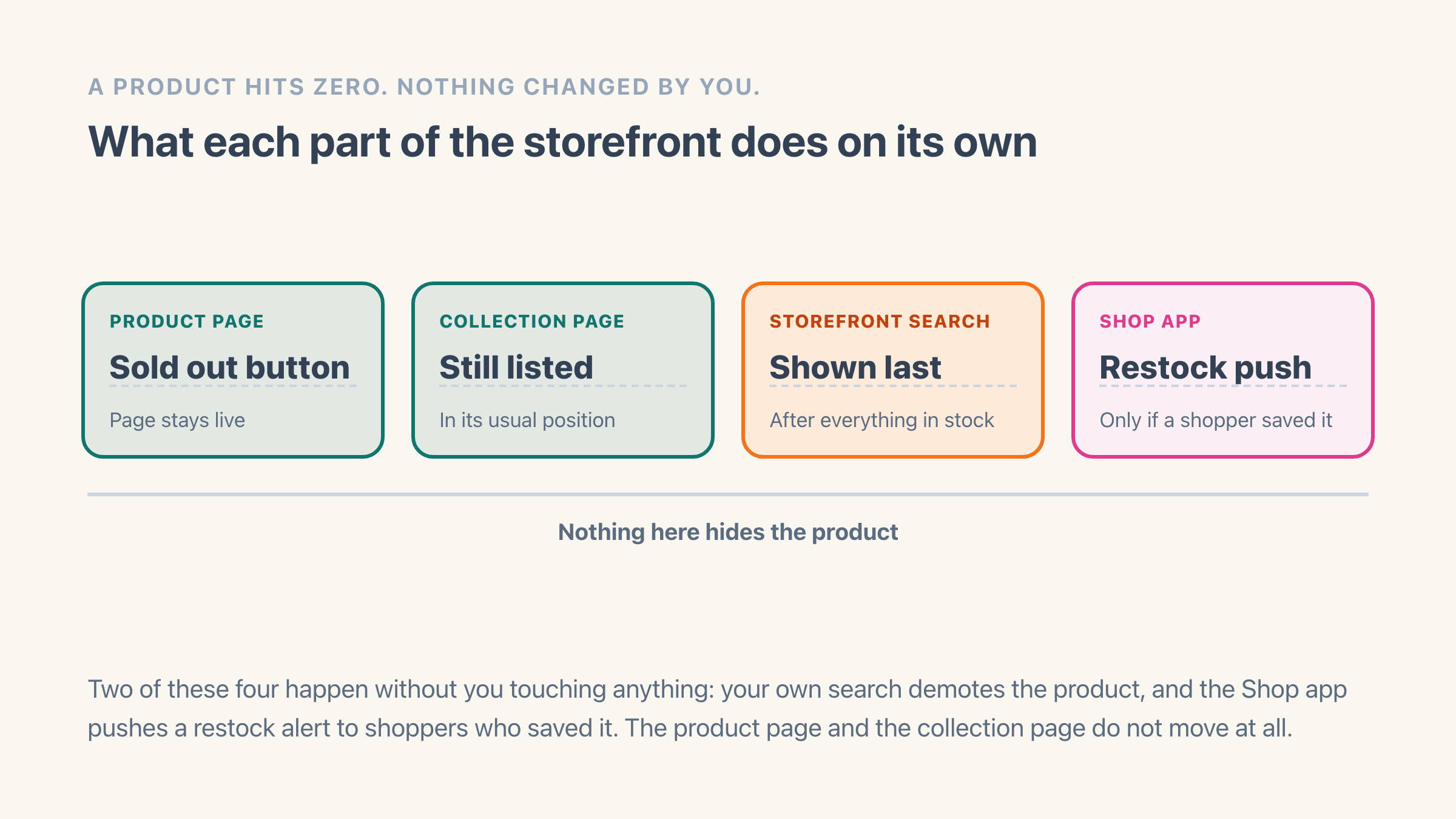
The rule above only touches collection pages. Everywhere else the product carries on as though nothing happened, and that is the part which catches people out.
The product page stays live and stays reachable. The buy button changes to a sold-out label and that is the extent of it, unless you have switched on Continue selling when out of stock, which is a different decision with different consequences and is covered in preventing overselling on Shopify.
One surface does move by itself. Shopify's search settings documentation states that "By default, unavailable products are displayed after all other matching results", so your store's own search box has already demoted them before you have done anything.
There is also one native restock notification, and it does not live on your storefront at all. Shopify's page on the Shop app says "Customers can set up push notifications to receive updates when a saved product drops in price, or when a sold-out product is back in stock." That reaches shoppers who already saved your product in the Shop app. It reaches nobody who arrives from Google.
Can you push sold-out products to the bottom instead of hiding them?
In your store's own search results, Shopify already does. The Search & Discovery app carries a setting for out of stock products, and its three choices are, in Shopify's words, that they "can be displayed, hidden or placed last in the returned results". The third of those is the default, so the demotion is already happening and the switch is there if you would rather they vanished from search altogether.
Collection pages get none of this. Shopify's collection sort orders are six ways of ranking by sales, price, title, creation date or your own dragging, and not one of them reads a stock number. That absence is why an entire App Store category exists to push sold-out products down a collection page, and why the answer above is a collection rule rather than a sort setting.
Should you hide a sold-out product at all?
It comes down to one question, which is whether the product is coming back. Something with a restock date is usually worth leaving up. Something with no date and no plan behind it is the one to move.
Leaving it up costs you the shopper who arrives, reads sold out and leaves. Hiding it costs the page whatever search ranking it had built and orphans any link pointing at it, and none of the states below hides a product from your storefront while keeping it in Google.
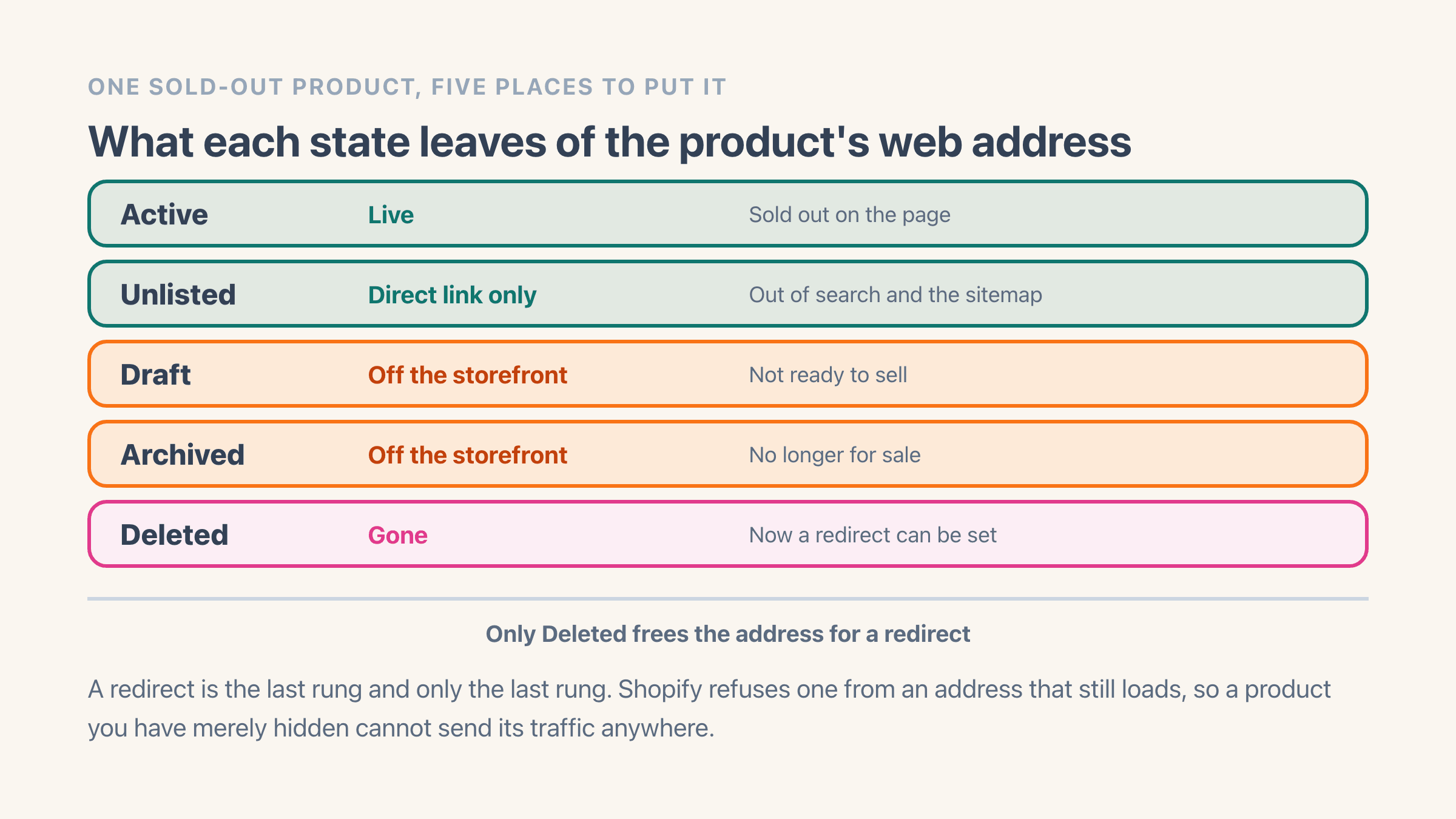
Five states are worth lining up, and the order is ours rather than Shopify's: what separates them is how much of the product's web address survives, not how hidden it feels. Four of them are statuses you set on the product - Active, Unlisted, Draft and Archived - and the fifth is deleting it, which is not a status at all. Two more exist that Shopify sets by itself, Suspended and Pending suspension, and they are off the list because you cannot choose them.
What does Unlisted do that the other states cannot?
The middle one does something none of the other four can. Shopify describes Unlisted as a status where "the product details are complete and the product can be sold, but the product can't be discovered by customers". The address keeps working, a shopper holding the link can still buy, and the product drops out of your collection pages, your store's search, your sitemap and internet search.
It is also the hardest of the five to find, and that is why it gets missed. The route Shopify documents is not the Status box on the product page: go to Products, tick the ones you want, then pick Unlist products from the menu.
What does hiding a product do to your search traffic?
Getting it out of Google is the slow half, whichever state you pick. Google's own guidance on keeping a page out of search says a page only drops out once it has been crawled again, and warns that "it may take months for Googlebot to revisit a page". Nothing about this is same-day.
A lot has been written about the search-ranking side of this and almost none of it is specific to Shopify. The Shopify-specific part is that a middle option exists at all. Unlisted is the only one of the five that takes a product off your storefront without taking its address down, so if you are hiding something because it looks bad sitting in a collection rather than because it is gone, that is the state to reach for.
How do you hide and republish products automatically with Shopify Flow?
A collection rule keeps sold-out products out of collections and leaves the product itself alone. If you want the product drafted or unlisted the moment it sells out and back on the shelf when a delivery lands, Flow is the free route to it.
Check the prerequisite before you plan around it. Shopify states that "To use Shopify Flow, you must first install the free Shopify Flow app from the Shopify App Store" and that "Shopify Flow is a free app available on the Basic, Grow, Advanced, and Plus plans". A Starter store has no Flow route, which ends this section before its first click for a slice of readers.
Then a genuine annoyance, and it is Shopify's rather than yours. Two of its own pages name the same template differently. The hiding out of stock products page sends you to "Publish and unpublish products based on inventory level", while the workflow examples page lists it as "Hide and republish products based on inventory level".
So search the template library for the word inventory and read what comes back. Pasting either name and concluding the template has been removed is the easy mistake here, and it is one Shopify set up for you.
Building it by hand is short. Shopify's instruction is to start from the "Product variant inventory quantity changed" trigger, check the quantity in a condition, and add the "Unpublish product" action when the condition is met. The republish half hangs off a second trigger, "Product variant back in stock", which Shopify says fires when inventory moves "from 0 or less to 1 or more".
That second trigger carries the same prerequisite the collection rule does, for the same reason: Shopify documents it as working only on products with inventory tracked. We walk a Flow build end to end, install and all, in setting up low stock alerts on Shopify.
What do you do with a product that is never coming back?
Delete it, and then redirect it. In that order, because Shopify will not let you do it the other way round.
This is the trap on the whole topic and it is worth reading twice. Shopify's page on URL redirects is blunt about it: "You can redirect only from broken URLs", and "If the URL still loads a valid webpage, then the URL redirect won't work."
Its own worked example for a product starts with a deletion, which is the tell: "if you delete a product, then you can set up a URL redirect so that when customers enter the URL for that product, they're redirected to a similar product on your store". A product you drafted or unlisted still owns its address as far as that rule is concerned, so the redirect you carefully set up sits there doing nothing at all.
Which is also the reason redirecting a temporarily sold-out product is the wrong move rather than a clever one. You would have to delete the product to make the redirect fire, and then there is nothing left to restock.
Redirects live under Content, then Menus in your admin, behind a View URL Redirects button. The ceilings are generous enough to ignore, at 100,000 on a standard store and 20,000,000 on Plus. The detail that does matter is that browsers and search engines cache a redirect, so taking one down does not stop it for everyone the same day.
How do you keep the sale when the shopper wanted it today?
Two things work here and they do different jobs. One captures the shopper for later. The other lets the sale happen now.
Capturing them needs an app on your own storefront. Shopify has two help pages about products that run out, one on hiding them from your collections and one on selling when out of stock, and neither mentions a way for a shopper to leave an email on your product page. The only native piece is the Shop app push notification above, and it only reaches people who already saved your product there.
Letting the sale happen now is the Continue selling when out of stock tick box, and it is the one setting on this page whose consequences run past display. Switching it on means the count goes negative and you have taken money for something you might not be able to ship. Read how overselling actually happens before you turn it on for a physical product, because the refund and the apology cost more than the sale did. Doing it deliberately, with a date on the product page and a hold on each order, is setting up backorders on Shopify.
When is hiding the wrong fix?
When the product should never have reached zero in the first place. Hiding is something you do after the sale is already lost, and a product that sells out every three weeks is telling you something no display setting can answer.
Running our own store, the products we kept hiding and republishing were always the same six or seven. Hiding them faster changed nothing. What changed things was holding a few units back so there was something on the shelf while a reorder was in transit, and working out that number turned out to be arithmetic rather than a setting.
It is the wrong fix when the count is simply wrong, too. A product showing sold out while boxes of it sit in the stockroom is usually one location serving your website while another holds the stock, or a warehouse sync that landed late. Hiding the product makes that harder to spot rather than easier.
And it is the wrong fix on anything you can still make or order in. Those want Continue selling switched on with a real ship date on the product page, not a rule that takes them off the storefront the second the count hits zero.