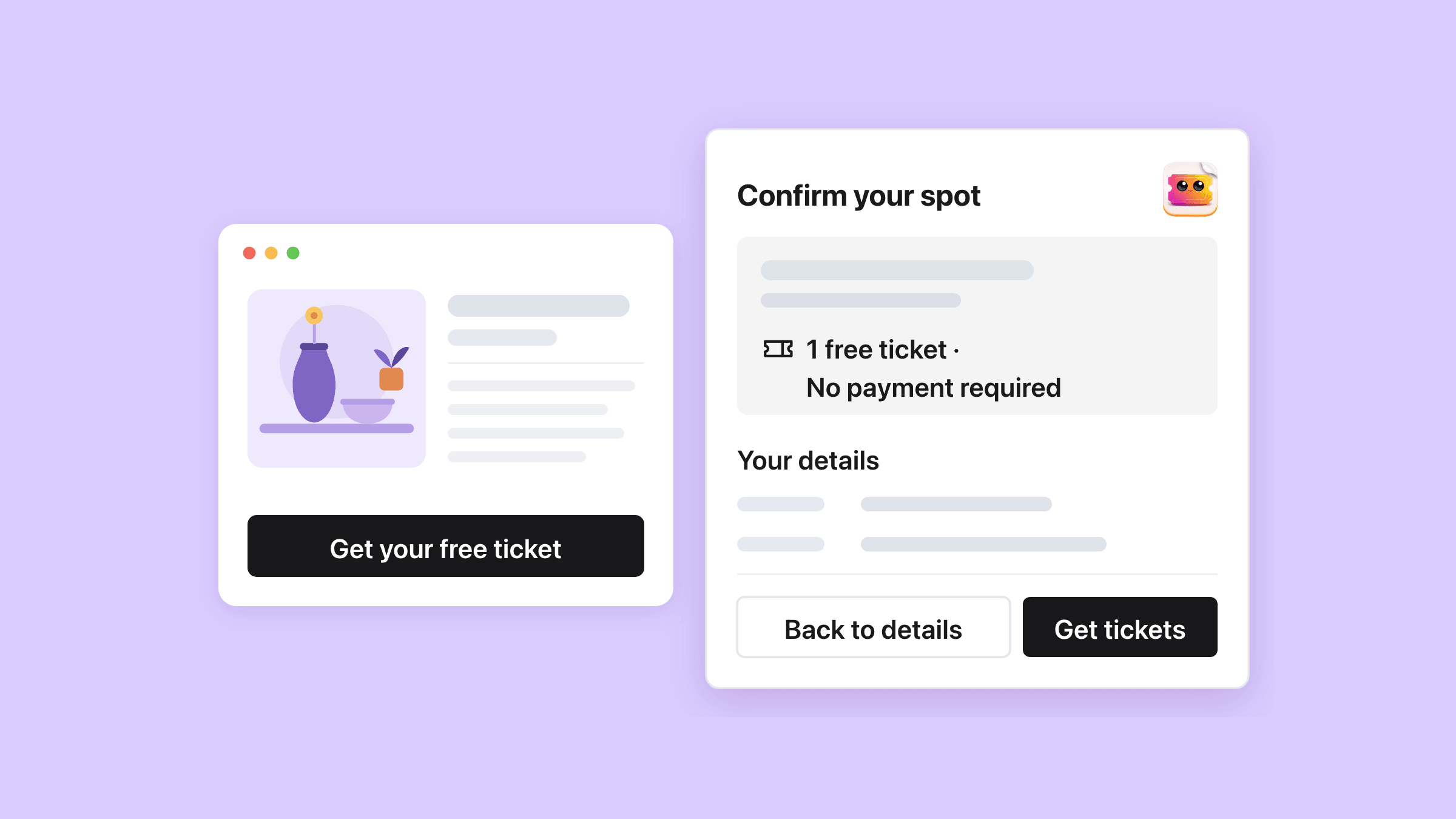
Easy Tickets & Events adds free registration to a free event’s Shopify product page. The buy button becomes “Get your free ticket”, guests confirm their details, and a QR ticket arrives by email. There is no cart, no checkout and no Shopify order, and every plan includes it.
On this page
- How does free registration work without a checkout?
- Which events can use free registration?
- Can one guest register a group?
- How do you cap a free event and stop repeat sign-ups?
- What emails and tickets do free registrants get?
- How are free tickets checked in at the door?
- Does a free ticket count toward your monthly tickets?
- What this does not do
- How do you set it up?
- Who uses this?
- What should you read next?
- Common questions
How does free registration work without a checkout?
The guest never leaves your product page. The app’s popup takes their details, shows them back once, and issues the ticket on the spot.
The buy button becomes “Get your free ticket”
On a free-registration event the buy button reads “Get your free ticket”, ahead of any wording you gave your own button. It opens the usual attendee form, whose submit button reads “Confirm your spot”.
- First name, last name and email on every registration.
- Phone, when the event has the phone field switched on.
- Your own attendee questions, the same ones a paid ticket asks.
A review screen asks for one more click
The review is headed “Confirm your spot” too. It lists the event, the date and time, the ticket type and the line “1 free ticket · No payment required”, then the guest’s details.
“Back to details” returns to the form with everything still filled in. “Get tickets” creates the ticket, and a double click cannot create a second one.
“You're in” confirms where the ticket went
The last screen shows a checkmark, “You're in” and the address the ticket was sent to.
“Open your ticket” opens the guest’s own ticket page in a new tab, and “Done” closes the popup.
Which events can use free registration?
Any event whose ticket types are all single-admission and cost 0, with nothing paid sold alongside them. Switch it on anywhere else and it refuses with “Free registration requires individual free tickets without add-ons, refund protection or reserved seating.”
A free registration is a ticket with no Shopify order behind it. It sits on the event’s Attendees tab with “Free registration” in the Order column, and it scans, emails and counts like any other ticket.
Five things keep an event on the normal checkout
Any one of these keeps free registration off, whether it was there before you switched it on or was added later.
- A ticket type priced above 0.
- A ticket type that admits several people: a bundle ticket, or a Group size above 1.
- An add-on or refund protection.
- Reserved seating, including a seat map still being set up.
- A ticket type whose Shopify variant was deleted, until you reconnect it.
A paid type added later sends the event back to checkout
The switch can stay on while the event stops qualifying. The product page then quietly falls back to the normal cart and checkout, so a paid ticket and a free RSVP cannot share one event.
A 0-priced ticket type still works through that checkout. Bought on its own it becomes a 0.00 Shopify order, and the buyer still gets a QR ticket.
The switch lives on the main event
Free registration is set on the main event, and every date of a series follows it. On a single date the switch is greyed out, with an Open main event settings button beside it.
It is off by default, the Create event page does not offer it, and duplicating an event leaves it off.
Can one guest register a group?
Yes. The popup’s own stepper counts the group, and the theme’s quantity box stays hidden at 1.
10 tickets per registration when the event has no per-order limit, and never more than 50 whatever the limit says.
The cap follows your ticket limits
With Limit tickets per order switched on, one registration takes up to your limit, and a limit set per ticket type applies to that type. The stepper also stops at the places left on the date.
One name for the group, or a name per ticket
Each ticket gets its own form, and the review lists them as “Attendee 1”, “Attendee 2” and so on. The event’s one-name switch is on by default, so the guest can tick “Book all tickets under one name” instead.
Turn that switch off when you need every guest’s name at the door.
The whole group fits, or nothing is booked
The app checks room for every ticket before it creates any. A group of five on a date with three places left gets “This event is full.” and no tickets at all.
How do you cap a free event and stop repeat sign-ups?
Give each ticket type a real capacity, and the app adds a 10-minute wait per email address on top.
Capacity is set per ticket type, per pool or per date
Inventory on each ticket type is its number of places, or one shared pool can cover every type. On a series each date keeps its own number, which you change on the Time slots tab.
The guest who confirms after the last place sees “This event is full.” An Inventory of 0 means no cap, so that date never fills.
Repeat sign-ups wait 10 minutes, and floods hit a ceiling
One email address can register once per date every 10 minutes, across ticket types and browsers. A second try shows an amber note ending “Please wait 10 minutes before registering another ticket.”
The app also holds a few ceilings that stop a script from emptying the event:
- Registrations only come through your own storefront, and calls from other websites are refused.
- 20 registrations a minute from one internet address, which matters when guests sign up on your venue’s Wi-Fi.
- 300 registrations every 10 minutes on a date with no capacity set.
- 2,000 registration emails an hour across your whole store.
A full date opens the waitlist
With the event’s waitlist on, which it is by default, a full date swaps the button for “Join the Waitlist”. When you cancel a ticket or move a guest off the date, the app emails the people waiting, oldest first, one per free place.
The email links back to the product page and holds nothing, so the place goes to whoever registers first.
What emails and tickets do free registrants get?
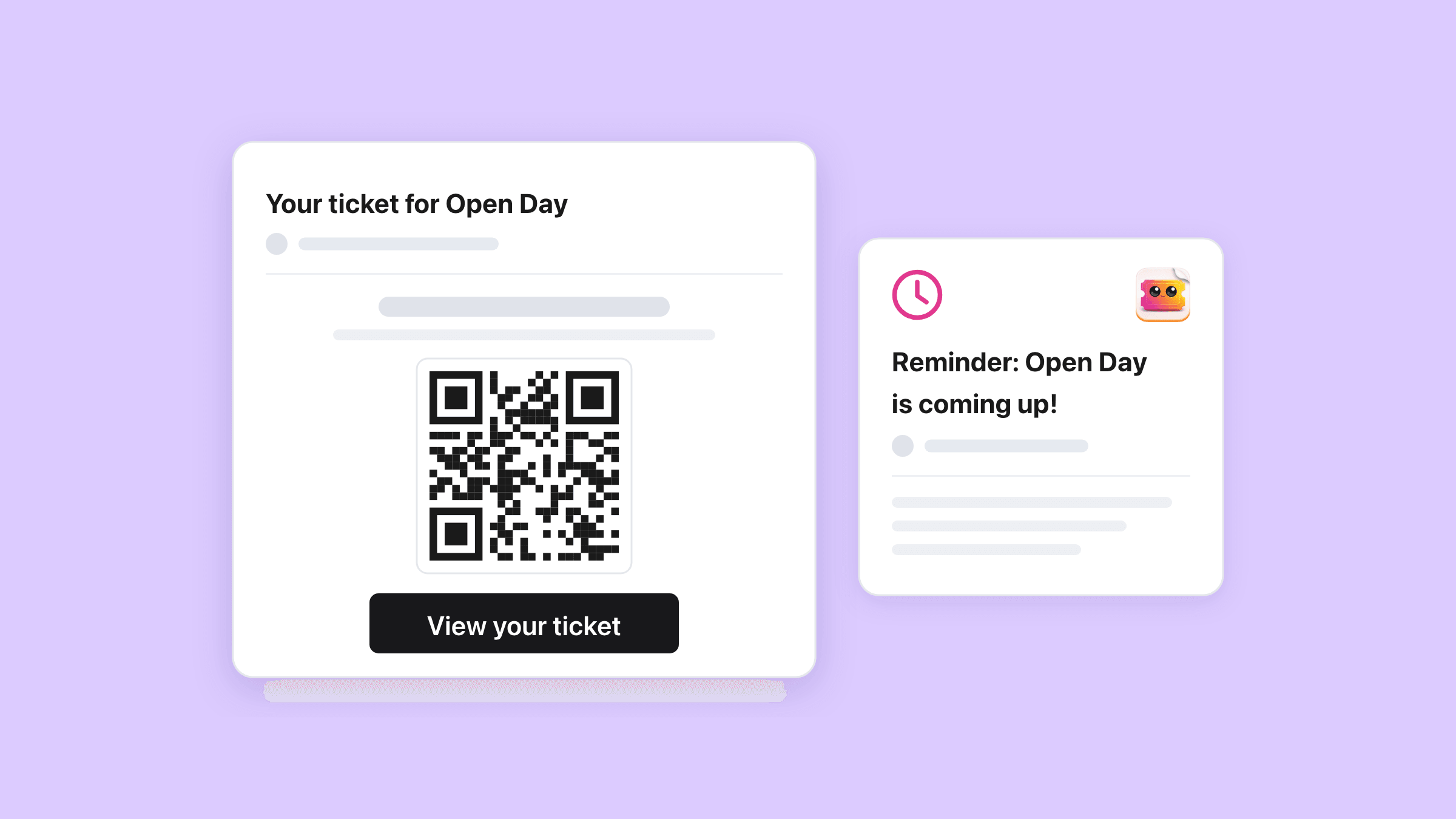
Each registrant gets the event’s normal ticket email, with a QR code that scans at the door.
The ticket email is your event’s confirmation email
It leaves within moments, in the event’s Confirmation design and under your Sender name. A one-ticket email shows the QR code and a “View your ticket” button, and a PDF is attached if you switched that on.
A group follows the event’s Delivery mode: Individual sends one email per ticket, and All-in-one sends one per email address. Booking under one name always means one email with every ticket.
On an online event the same email carries the join link.
Every registration gets its own ticket page
“Open your ticket” and the email both lead to the ticket’s own page. Guests can correct their name and email there, and move to another date when you allow it on a series.
- The QR code, the same one the email carries.
- A PDF download of the ticket.
- “Add to calendar” links for Google, Outlook and Apple Calendar.
Reminders reach free registrants too
Turn on Send reminder email on the Emails tab and pick a time under Hours before event, from 1 hour to 1 week. Every ticket holder with an email address gets one reminder, however many tickets they hold.
A reminder is never sent late, and a big list takes time. At the app’s sending pace, 15,000 reminders need at least 37.5 minutes.
How are free tickets checked in at the door?
With the same scanner as every other ticket: the check-in page on any phone, or the Check In tile in Shopify POS.
The QR code scans like a paid ticket
Staff open the event’s check-in link, type the PIN on each phone and point the camera at the code. The ticket type’s check-in rules apply exactly as they do to paid tickets.
A free group has no Shopify order, so the door shows no group hint and an order number finds nothing. Each ticket is scanned on its own.
Door mode takes over at 2,000 tickets on a date
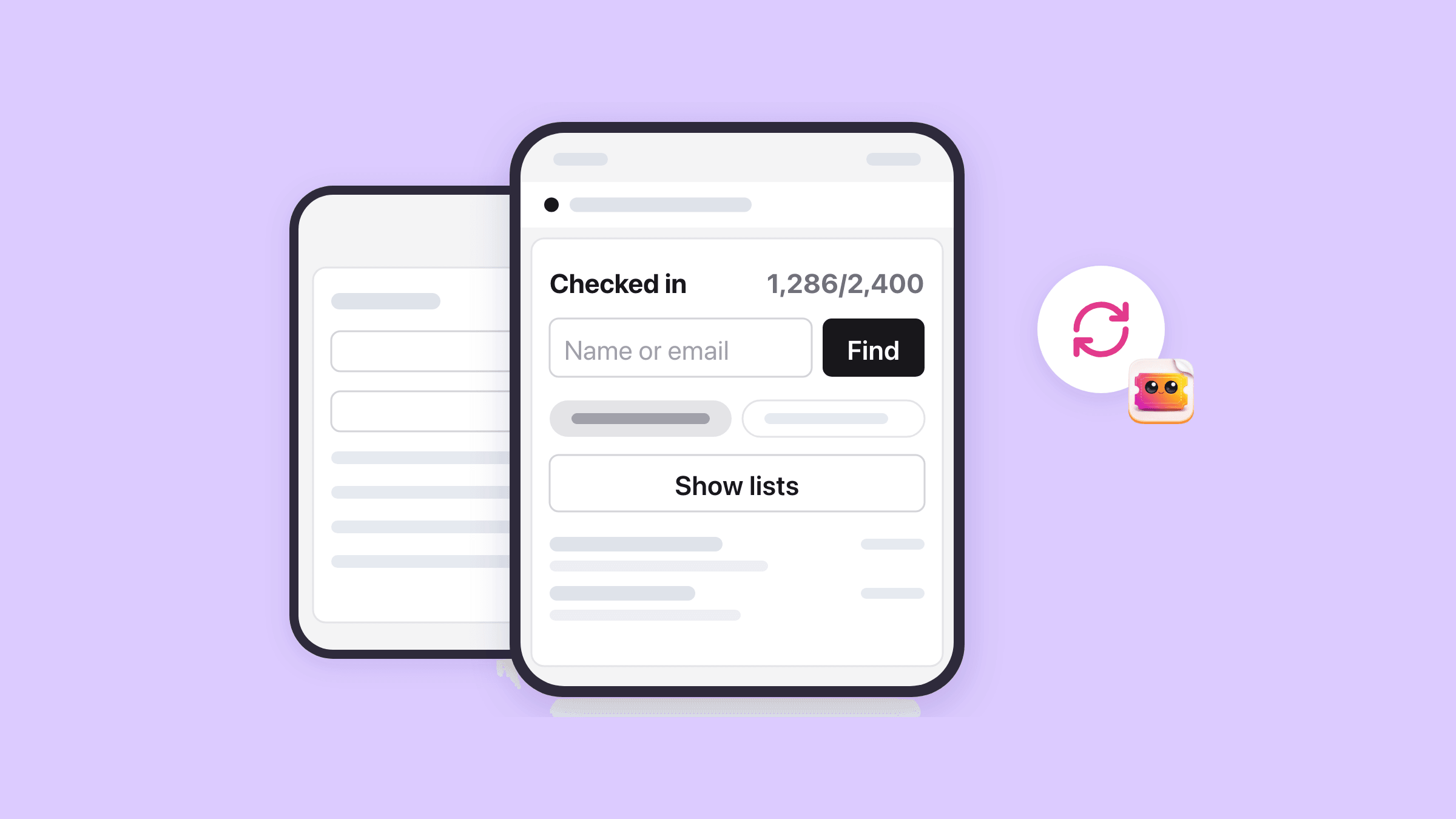
A date with 2,000 or more tickets opens the check-in page in door mode. It shows the counter and the last 25 check-ins instead of two long lists, and a scan updates the counter without reloading the page.
It switches on by itself, and every scan still needs a connection.
- The Find button looks up a guest on that date by name or email, from two characters.
- The Show lists button loads the Checked in and Missing lists when you want them.
- Every phone’s counter catches up within about 30 seconds.
Does a free ticket count toward your monthly tickets?
Yes. Every free ticket uses one ticket of your plan’s allowance for the 30-day cycle, exactly as a paid one does.
A 300-guest open day fits the Essentials plan, with 300 of its 500 tickets used for that cycle. On the Free plan, 20 registrations use up the whole cycle.
Guests see “Tickets temporarily unavailable” at the limit
When the allowance is used up, the product page shows “Tickets temporarily unavailable” and switches the button off. A guest caught halfway sees “Free registration is unavailable for this selection.”
A group needs room for all its tickets, or none are created.
Cancelling a free ticket does not return it
Cancel ticket on the Attendees tab frees the place and emails your waitlist, but the ticket stays counted for the cycle.
Tickets come back on Shopify refunds and order cancellations, and a free registration has no order to refund.
Plans differ only in tickets per 30 days
The Plans page puts it plainly: “Every plan has every feature. Plans differ only in how many tickets you can sell or give away every 30 days.”
Pay yearly and you pay for ten months, with no per-ticket fee on any plan. Above Business, a custom plan is agreed with us at support@upsellshark.com.
- Free: 20 tickets every 30 days.
- Essentials: 500 tickets for 29 USD a month.
- Professional: 1,500 tickets for 89 USD a month.
- Business: 2,500 tickets for 149 USD a month.
- Founders, for shops installed before paid plans began on 23 September 2026: 500 tickets every 30 days at no cost.
What this does not do
- No Shopify order and no Shopify customer record. Free registrations stay out of Shopify’s Orders, customers and reports.
- No paid extras. Paid ticket types, add-ons and refund protection all keep an event on the normal checkout.
- No email verification and no captcha. The 10-minute wait applies per address, so a guest who types a new address can register again.
- No approval step. Every valid registration is accepted straight away.
- Guests cannot cancel their own free ticket, and cancelling it yourself does not return it to your monthly allowance.
- No group hint at the door, no order-number lookup and no group on the printed guest list, because a free group has no order behind it.
- The event’s Analytics tab counts free registrations as tickets and files them under Imported in Booking sources.
- Registration closes at the date’s end time, while sales are paused, outside the sale window and while the event is hidden.
How do you set it up?
Create the event with free tickets
Select Create event and give every ticket type a Price of 0 and a Group size of 1. Set Inventory to the number of places, because 0 means no cap and a date with no cap never fills or opens the waitlist.
Leave out add-ons, refund protection and reserved seating, because any of them keeps free registration off.
Found under Easy Tickets & Events > Events > Create event.
Switch on free registration
In the Free registration card, turn on Enable free registration. On a series, do it on the main event, because a single date only shows Open main event settings.
If the event does not qualify, the switch refuses and names what it needs.
Found under Easy Tickets & Events > Events > [your event] > Event settings > Attendee information.
Choose the emails
The Confirmation card is always on, and it is the email every registrant gets. Customize opens its design.
For a reminder, turn on Send reminder email and pick a time under Hours before event, from 1 hour to 1 week.
Found under Easy Tickets & Events > Events > [your event] > Event settings > Emails.
Check the popup is on in your theme
Free registration runs in the app’s popup, so the Easy Tickets Popup embed has to be switched on. Then open the product page and register once, the way a guest would.
That test uses one ticket of your monthly allowance, like any registration. The free events and RSVP guide covers every setting.
Found under Shopify admin > Online Store > Themes > Customize > App embeds.
Who uses this?
Studios and workshops
A free open day at a pottery or art studio, capped at the room, with a reminder the day before and a QR scan at the door.
Free talks and webinars
An online talk where every ticket email carries the join link, and a reminder can go out an hour before the start.
Read the guideLaunches and community evenings
A store launch or a club night, capped at the room, with the waitlist taking over when it fills.
Big free festivals
A free day for thousands of guests, where door mode keeps the check-in page quick once a date passes 2,000 tickets.
What should you read next?
Time slots and timed entry
Run the same free event at several times a day, each sitting with its own places and its own waitlist.
Class passes and prepaid class packs
For classes people pay for up front: a pack of credits, each one booking a place in one class.
Sell event tickets on Shopify
The whole set-up for paid events, from the product page to the scan at the door.
Check in with any phone
Every part of the check-in page, from the PIN and the camera to typed ticket numbers, undo and door mode, with a scanner you can try.
See every Easy Tickets featureRead the setup guide in the manual