Twelve orders for a dining table you build by hand, a six-week queue, and a product page that still says In stock. Shopify has no made-to-order button. What it has is three ordinary settings that do the job between them: the quantity field on the product, the fulfillment time under Settings, and the cart cap under Checkout. Set those and the product sells the number you can actually make, shows the buyer a real delivery date, and goes quiet when your bench is full.
Does Shopify have a made-to-order setting?
No. There is no checkbox called Made to order anywhere in the admin, and the core setup needs no app.
What you are really telling Shopify is three things: how many you can make, how long each one takes, and how many a single shopper may put in one cart. There is a native field for each of those.
Everything in the walkthrough below works on any Shopify plan. Deposits are the one exception, and that has its own section.
Should you turn inventory tracking off for made-to-order products?
Almost every guide answering this question says yes. Switch tracking off, or leave it on and tick Continue selling when out of stock, so the product can never run out.
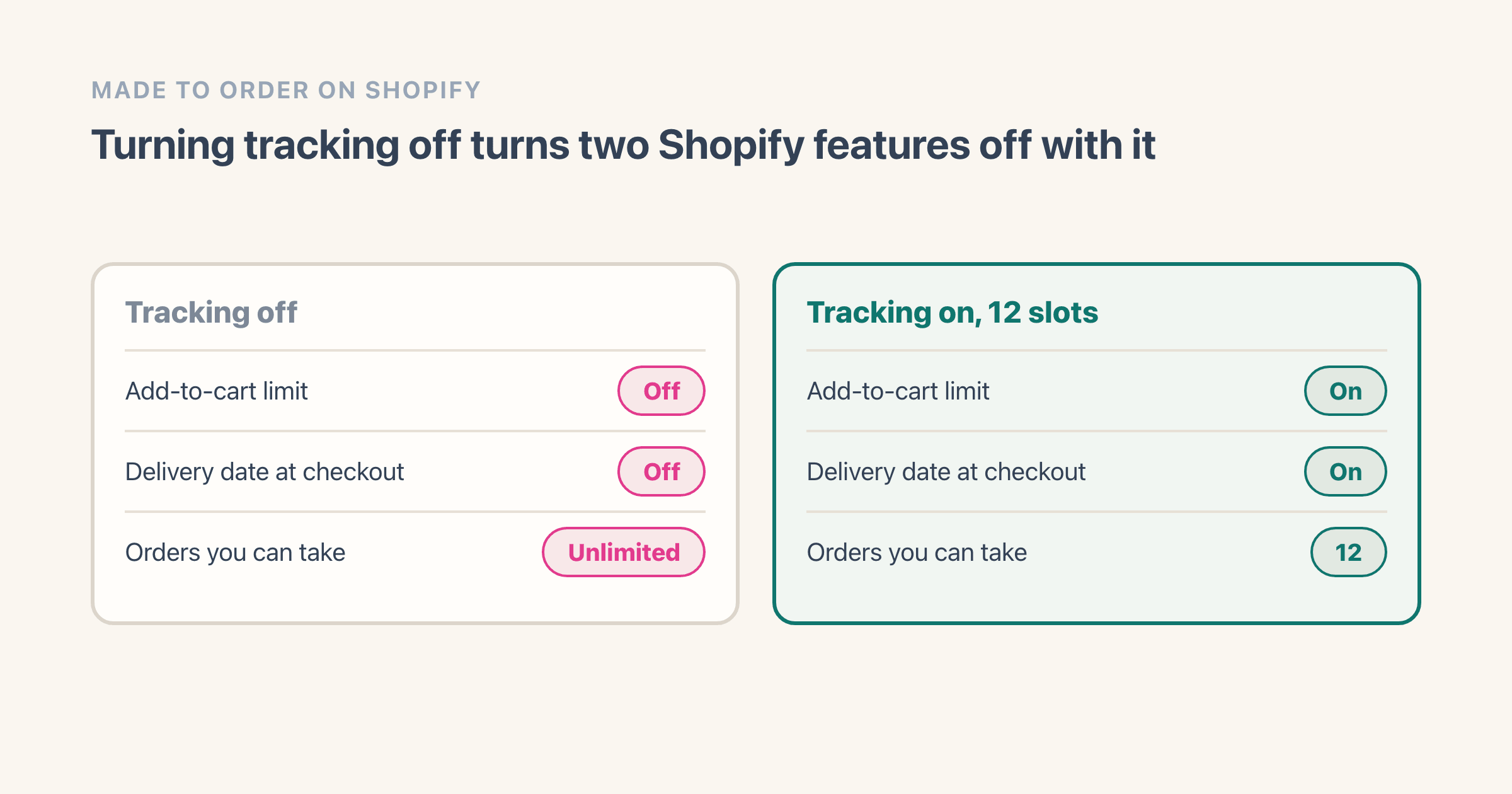
That advice quietly costs you two Shopify features, and not one of the eleven guides I read while researching this mentions either.
The first is the cart cap. Shopify's help page for the add-to-cart limit lists the cases where the limit does not apply, and two of them are exactly the states the standard advice puts you in: "When the product or variant has the Inventory tracked setting deactivated" and "When the product or variant has the Continue selling when out of stock setting activated." Follow the usual recipe and Shopify's only built-in cap on how many one shopper can add stops working on that product.
The second is the delivery date. Shopify's page on manual delivery dates attaches a condition to it: "Expected delivery dates are displayed at checkout if a product's inventory exceeds 0." Sell at zero and the buyer stops seeing a date at the moment they are deciding whether a six-week wait is worth it.
I read both of those pages in the Shopify Help Center on 8 August 2026 before writing this, because the exception lists are the part that changes without anyone announcing it.
So the setup below keeps tracking switched on and puts the quantity field to better use than counting boxes on a shelf.
How do you set up a made-to-order product, step by step?
Seven steps, from an empty product page to a listing that behaves.
-
Decide how many you can make in a period. Pick a real number for a real window: twelve dining tables a month, forty cakes a week. This number is the whole setup, so guess low the first time.
-
Create the product and turn quantity tracking on. Go to Products, click the product, and find the Inventory section. Turn tracking on, then type your slot count into Available and save. The Products list starts showing that number in the Inventory column, which is how you check it stuck. Shopify's inventory tracking guide walks the same screen on desktop and in the mobile app, where the toggle is called Track quantity.
-
Leave Continue selling when out of stock switched off. It is a checkbox in the same Inventory section, just under the quantity. Off is what makes the listing go sold out when your last slot goes. If the storefront still shows Add to cart on a product you know is at zero, this is the first thing to check, and it is often on because a theme demo or a product import turned it on.
-
Set your fulfillment time. Go to Settings, then Shipping and delivery, then Estimated delivery dates, and choose Manual. Shopify offers Same business day, Next business day, 2 business days, or Custom, and Custom takes 3 to 40 business days or 1 to 8 weeks. Pick the one that matches your bench rather than the one that sounds better. Save, and checkout starts quoting a dated range instead of a transit-time estimate. That last part depends on your shipping rates. Flat rates with a transit time, label-calculated rates and negotiated carrier rates all get a date. Rates served by a shipping app never do, so check that before you decide the setting is broken.
What do you set on the cart and the product page?
-
Cap the cart. Go to Settings, then Checkout, then Advanced preferences, and set the add-to-cart limit. Shopify's own page carries the caution that matters here: the maximum applies to each variant on its own rather than to the product or the cart as a whole, so a three-color product capped at two still lets one shopper buy six.
-
Write the wait into the product page yourself. Shopify does not put a lead time on a product page for you. Put it in the first line of the description, above the fold, in the words you would use on the phone: "Built to order in my workshop, ships in about 6 weeks."
-
Add the choices as options. In the Variants section, add options like size, wood or finish, up to three per product. Anything the customer types rather than picks is a different problem, and it comes up again further down.
How do you show a six-week lead time on Shopify?
There are three places a buyer can meet the wait, and you only write one of them.
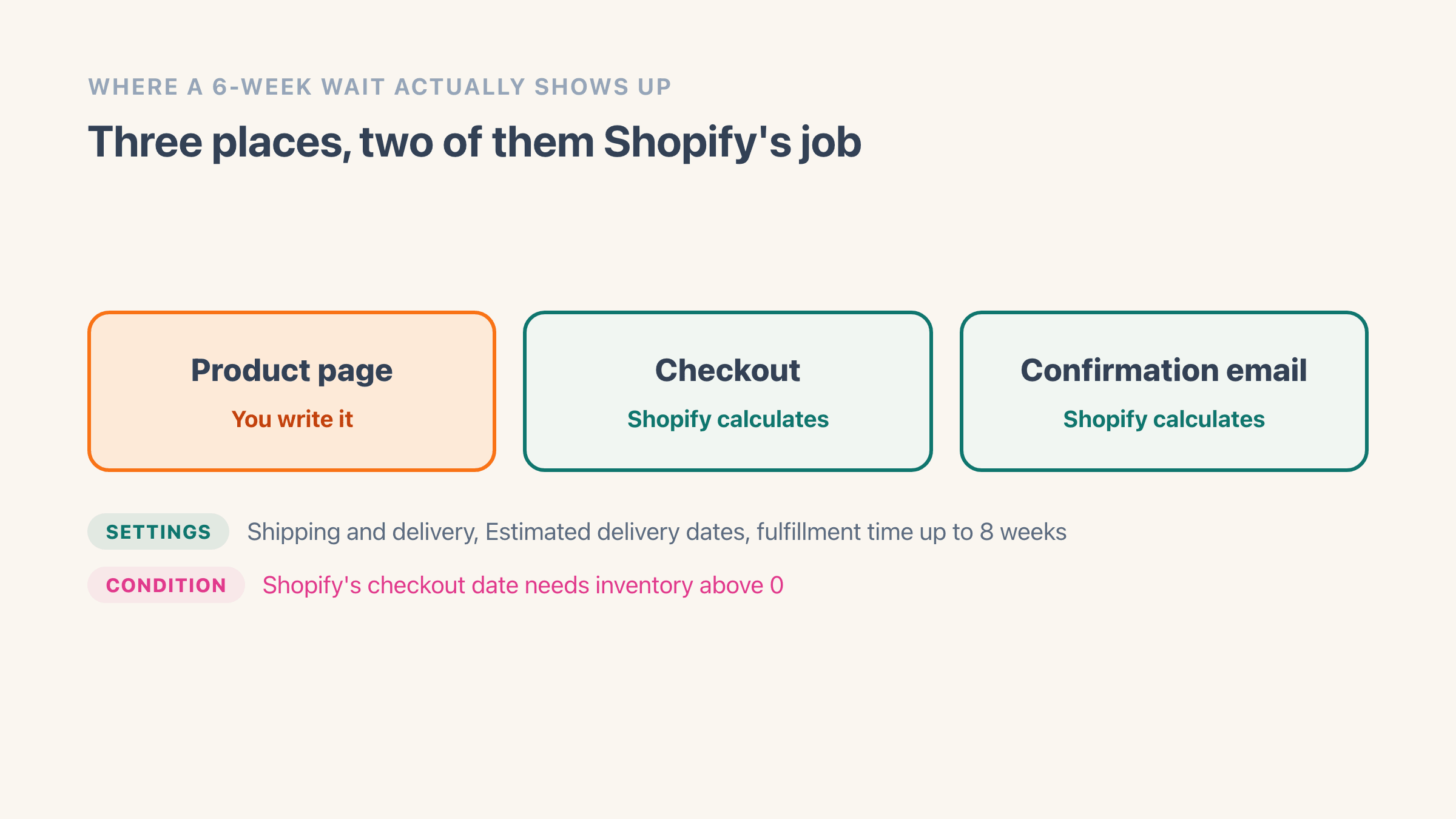
The product page is yours. There is no native per-product lead-time field, so the text lives in your description, or in theme copy, or in a delivery-date app if you want a calculated date on the page itself. Theme copy has a catch worth knowing first: text typed into the theme editor lands on every product that uses the same template, so a six-week wait written there is a six-week wait on everything.
Checkout and the confirmation email are Shopify's. Once the fulfillment time from step 4 is set, Shopify adds it to carrier transit time and shows the buyer a dated range instead of a promise. The same estimate follows the order into accelerated checkouts such as Shop Pay, into the confirmation email, and onto the Thank you page.
That is the part worth protecting, and it is why step 3 matters. A calculated date at checkout does more for a nervous buyer than any badge you can add to a product image.
How do you cap how many made-to-order items you take per week?
Your slot count is the cap. Set Available to twelve and Shopify counts down as orders land, then stops selling at zero without you watching anything.
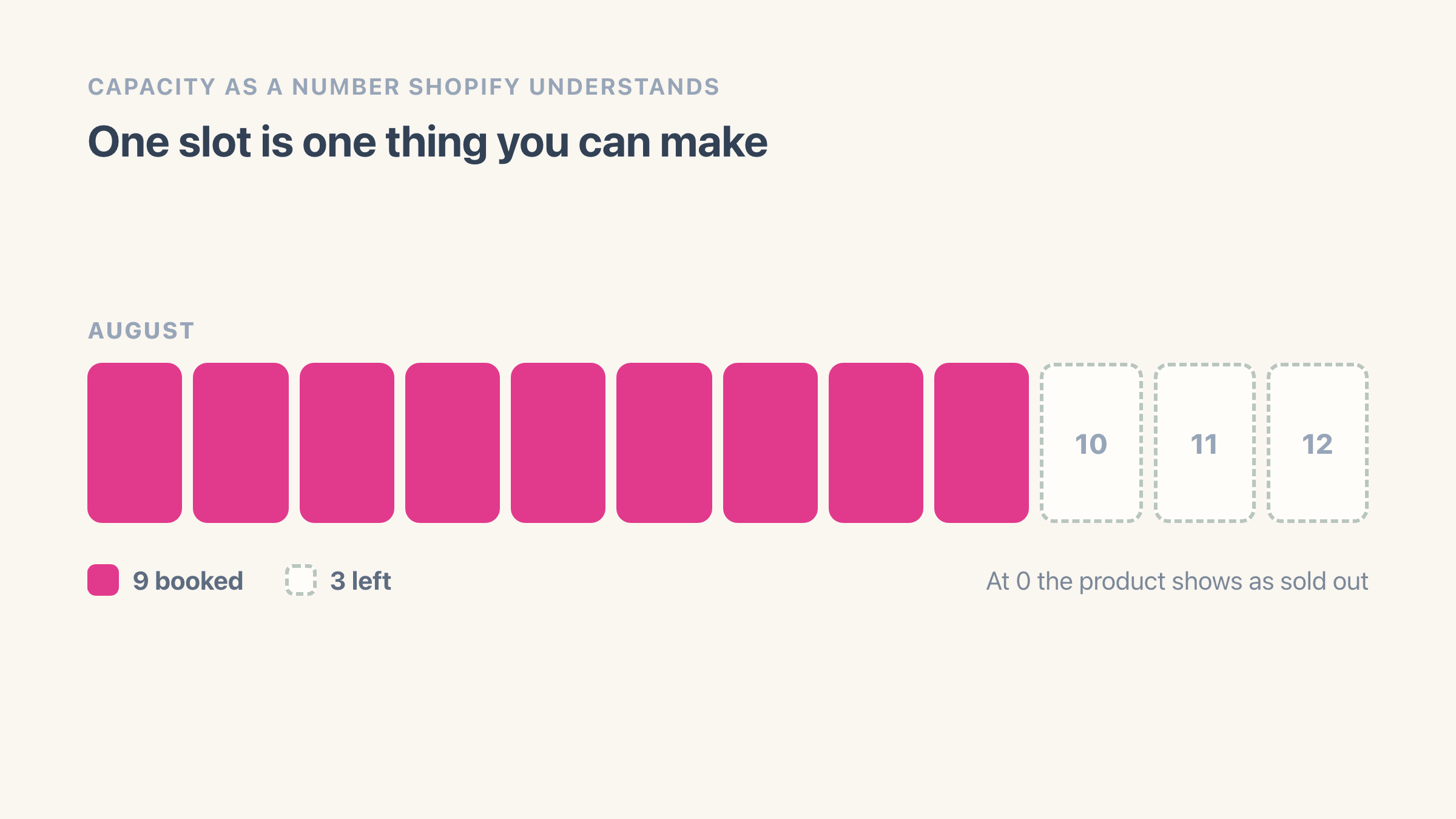
Reopening the queue is one edit: raise Available at the start of the next period. Some makers keep it simpler and list a month at a time, so the sold-out state is also the message.
Two limits worth knowing about. Shopify has no rolling seven-day rule, so a true weekly cap that resets every Monday needs either a calendar reminder or an order-limit app. And the cart cap is per variant, so it stops one shopper clearing your month in a single click, but not two shoppers doing it in two clicks a minute apart. If those two settings sound similar, we pulled them apart in order limits vs safety stock.
The thing slots do not do is tell you when they are nearly gone. Zero is a fine stopping point for a mug. It is a bad one for a workshop that needs a week's notice to order timber, and worse if you want to hold two slots back for repeat customers. That is the job Easy Stock Buffer does, and on a catalogue this small it usually fits inside the free plan.

Fix everything with Easy Stock Buffer
Free 7-day trialStop overselling with a safety stock level
Set a safety-stock floor per product and Easy Stock Buffer blocks checkout server-side before you run out - no theme edits, and it holds on every payment path including Shop Pay.
- Server-side checkout block at your stock floor
- Per-variant and bulk thresholds
- Low-stock alerts and auto-hide
Can you take a deposit instead of full payment?
Not at your normal checkout, on most plans. This is the one place made-to-order sellers hit a real wall on Shopify.
Shopify's partial payments work on orders that carry payment terms, and you collect them from Orders, then the order, then Collect payment. The help page states the feature is available to stores on the Shopify Plus plan. For a commission you quote by email that is workable through a draft order. For a product page that anyone can buy from, it is not.
The workaround people reach for next does not survive a six-week build. Switching payment capture to Manually under Settings then Payments only authorizes the card, and Shopify Payments gives you an authorization period of 7 days. Capture after that and a 1.75% charge is added on top of the normal card fees.
Longer windows exist, and the same page puts two conditions on them. They are "available only to stores on the Shopify Plus plan that use Shopify Payments", and even then the length depends on the card. Visa, Mastercard and American Express reach up to 30 days, while Diners Club and China Union Pay stay at seven.
So a real deposit flow means an app. Downpay is the one most made-to-order stores land on, and its listing says so in as many words, describing itself as built for custom, made-to-order and high-value products with lead times. Its plans ran from $29 a month to $249 a month with a 7-day trial when I checked the listing on 8 August 2026.
On how much to ask for, PreProduct, which sells pre-order tooling and therefore has a view, puts custom and made-to-order deposits at 40% to 50% and the general range at 20% to 50%. Take the full amount instead if your materials cost is low and your cancellation rate is lower. A deposit is protection against a buyer disappearing mid-build, and if that has never happened to you, you are paying $29 a month for a feeling.
What is the difference between made to order and pre-order?
Made to order starts one build for one buyer, whenever they turn up. A pre-order puts that buyer in a queue for a batch that arrives on a date you have committed to.
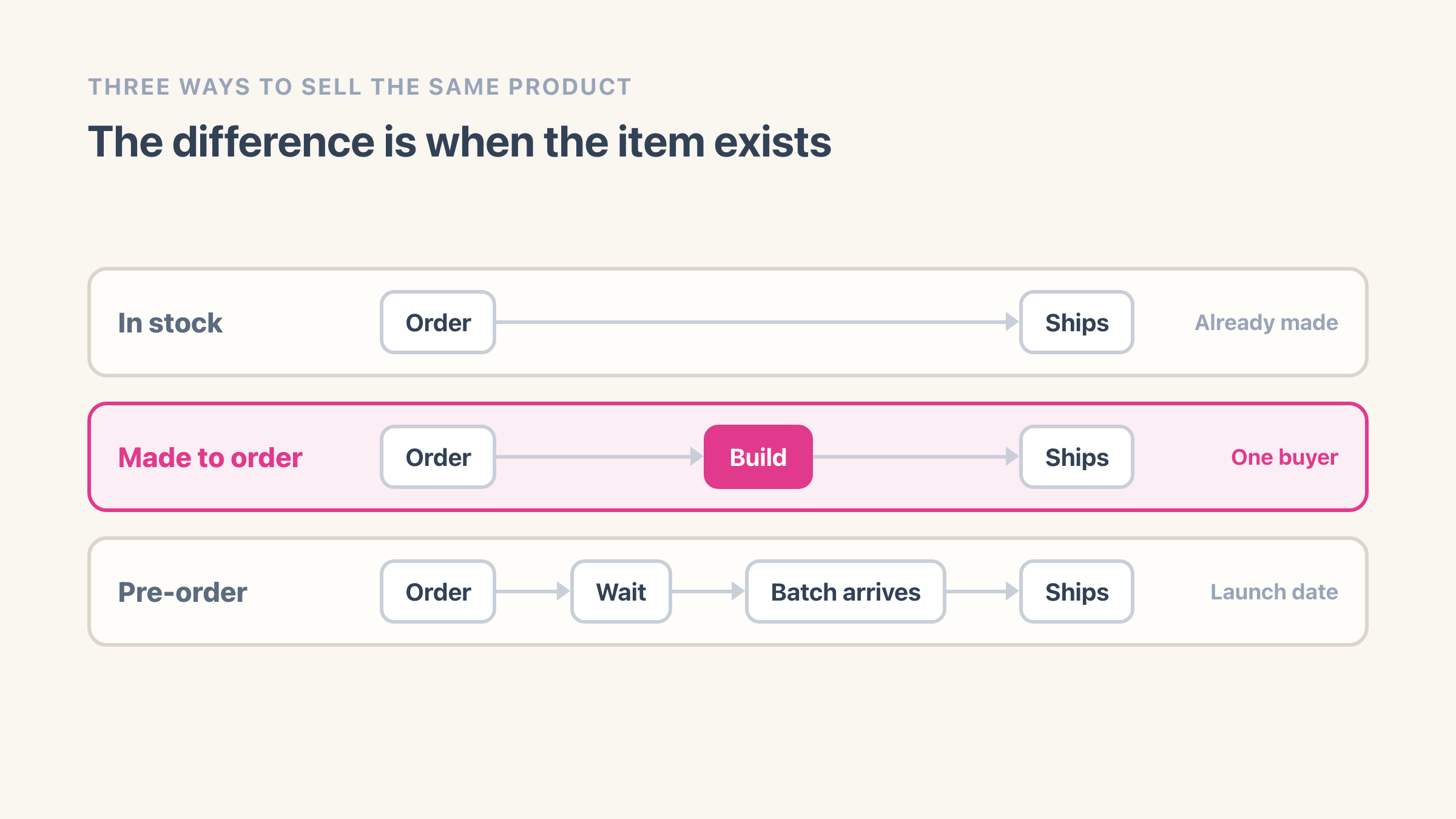
The distinction decides your settings. A pre-order has a launch date and unlimited demand until that date, which is the case where selling past zero genuinely is the right answer. Made to order has no launch date and very limited supply, which is why the slot count beats an unlimited buy button. A backorder is a third thing again, where the stock exists but has not reached you yet, and setting one up on Shopify runs on different settings from both.
It also decides how angry an email gets. Miss a pre-order date and everyone waiting hears about it at once. Miss a made-to-order date and you have one conversation, which is a much better week.
What still needs an app or a theme change?
Four things, and it is worth knowing which before you start.
- A text box for a name, a date or an engraving. Shopify has no free-text field on the product page. The Shopify Community threads on this all end at a theme edit or at a product-options app such as Textbox and Textfield by Textify.
- A calculated ship-by date on the product page itself, rather than at checkout.
- A rolling weekly or daily cap that resets on its own.
- Deposits at checkout, if you are not on Shopify Plus.
Everything else in this article is native, which is the real answer to "can I do made to order on Shopify without an app". You can. The four above are the exceptions, and the text box is the one most makers hit first.
How do you undo a made-to-order product back to normal stock?
Reverse the two settings that changed and nothing is left behind.
Open the product, go to the Inventory section, and set Available to the real number of finished units you are holding. If you are going back to buying stock in, that is your first delivery. Then raise or clear the add-to-cart limit under Settings, then Checkout, then Advanced preferences, since a cap built around one bench is too tight for a shelf.
The fulfillment time is the one to check last. It is a shop-wide setting, not a per-product one, so a six-week fulfillment time set for a made-to-order line is still promising six weeks on everything else you sell. Drop it back before you wonder why your in-stock mugs quote a date in October.
Orders already placed are untouched by any of this. You are editing a listing, not a ledger.
When is turning tracking off the right call?
When your capacity is genuinely not the constraint. Print on demand, a partner who prints and ships for you, a digital file cut to order: there is no bench to fill, so a slot count is a number you would only have to keep resetting.
In that case switch tracking off, accept that the cart cap and the checkout delivery date go with it, and put more work into the product description because it is now the only place the wait is stated.
I run a Shopify store that turns over about $5 million a year, and the pattern I keep seeing is people copying the print-on-demand setup onto handmade goods. They read the same advice, tick the same box, and end up with a queue three months long and no way to say so.
What to check when the delivery date still does not show
Work down this list before assuming it is broken.
- Available is above 0 on the variant the shopper picked, not just on the product.
- Continue selling when out of stock is off, since selling below zero fails the same condition.
- The fulfillment time under Settings, then Shipping and delivery, then Estimated delivery dates is set to Manual with a value, not left on the default.
- Your shipping rates are a kind Shopify can put a date on: flat rates with a transit time, label-calculated rates, or negotiated carrier rates. Rates served by a shipping app never get one.
- You are looking at checkout, not the product page. The product page is your own copy and always will be.
If your problem is running out of real stock rather than running out of time, preventing overselling on Shopify and setting a safety stock level pick up where this leaves off, and the rest of the Upsellshark blog is written for the same reader.
One thing to do today: open your busiest made-to-order product, count how many you can honestly make this month, and type that number into Available. That single field does more than any badge, banner or app you could add this week.
Fix everything with Easy Stock Buffer
Free 7-day trialStop overselling with a safety stock level
Set a safety-stock floor per product and Easy Stock Buffer blocks checkout server-side before you run out - no theme edits, and it holds on every payment path including Shop Pay.
- Server-side checkout block at your stock floor
- Per-variant and bulk thresholds
- Low-stock alerts and auto-hide
Frequently asked questions
Can I sell made-to-order products on the Shopify Basic plan?
Yes. The quantity field, the fulfillment time under Settings and the add-to-cart limit all work on every Shopify plan. The one part that is plan-gated is collecting a deposit at checkout: Shopify's partial payments are for orders with payment terms and the help page states the feature is available to stores on the Shopify Plus plan.
How many choices can I offer on one made-to-order product?
Shopify allows three options per product, such as size, wood and finish, and up to 2,048 variants built from them (Shopify's guide to adding variants). Free-text choices like a name or an engraving are not variants and need a theme change or a product-options app.
Does the add-to-cart limit work in Shopify POS?
No. Shopify's add-to-cart limit page lists Shopify POS carts as one of the cases where the limit does not apply, along with draft orders and B2B carts with their own quantity rules. If you take commissions in person, the cap is yours to remember.
Can I take a made-to-order job for something that is not on my site at all?
Yes, through a draft order. Go to Orders, then Drafts, then Create order, and add a custom item with its own name, price and tax rather than picking an existing product. Shopify emails the customer a link to a checkout so they can pay. Shopify's draft order guide covers the whole flow.
How do I handle Etsy personalization orders once I move to Shopify?
Shopify has no equivalent of the single Personalization box Etsy puts on every listing. You rebuild it as either a product option, when the choices are a fixed list, or as a text box added by a product-options app when the buyer types something free-form. Plan for the second one if you sell engraving or monogramming.