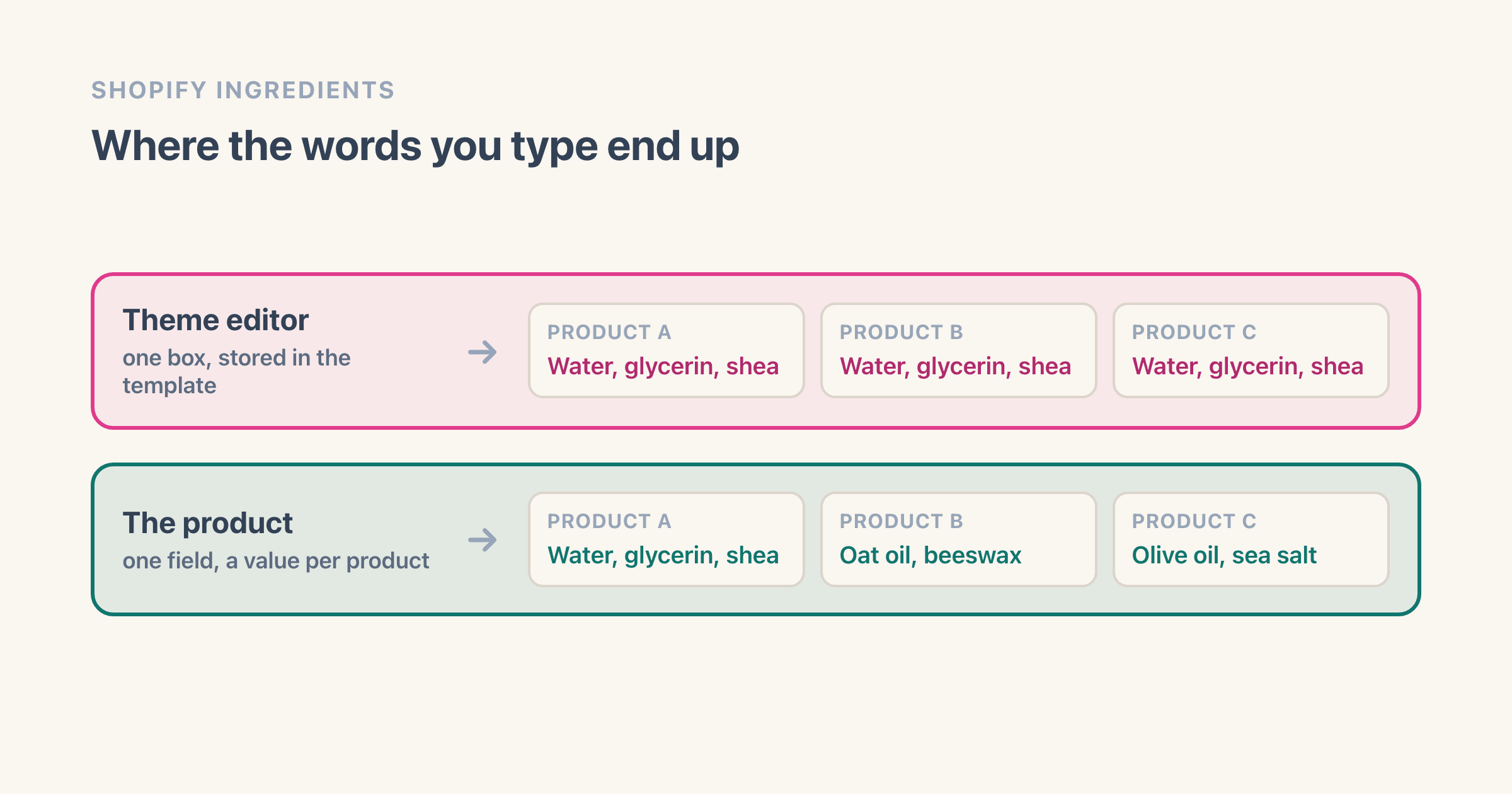
You add ingredients to a soap, save, and open the next product. Same list. You change it there, and now the first one says that too. The text is not on your products at all - it is in your theme, and Shopify's own help centre says why: "When you edit a template, your changes apply to every page that uses the template." Unless you have built a second product template, every product page in your store runs the same one. Move the list onto each product and the problem disappears.
Why is the same ingredients text showing on all my products?
Shopify calls a template "a group of sections that are configured to give your online store a consistent design and feel". The theme editor edits that group. So when you click an Ingredients block and type into its text box, you are not filling in a product - you are configuring a section, and the templates page states the consequence in one line: "When you edit a template, your changes apply to every page that uses the template."
Consistent design is the point of that box. It is why a theme can give you one Shipping and returns paragraph and have it appear everywhere without you retyping it. Ingredients are the one kind of text it was never meant to hold.
Merchants have been walking into this for years, and they describe it the same way every time. December 2023, on the Shopify Community: "but i have the issue that the ingredients and descriptions all become the same for all products when i add them in the 'ingredients' box".
The reply, from Erin_1 the same day, is the whole answer: "When you make changes in your theme editor you are actually editing a template that is applied to multiple pages by default". Twenty-two months earlier a replier on a Sense theme thread put it more bluntly: "Settings for a resource template are for all resources(products,collections,etc) that use that template."
We went looking for how the ranking guides on this topic explain it. They mostly do not. The pages that come up teach you how to add ingredients as though you had not started yet, which is no use once you already have forty products saying the same thing.
How do I tell whether I typed it into the theme editor or into the product?
Two minutes, and you do not need to know what the box is called.
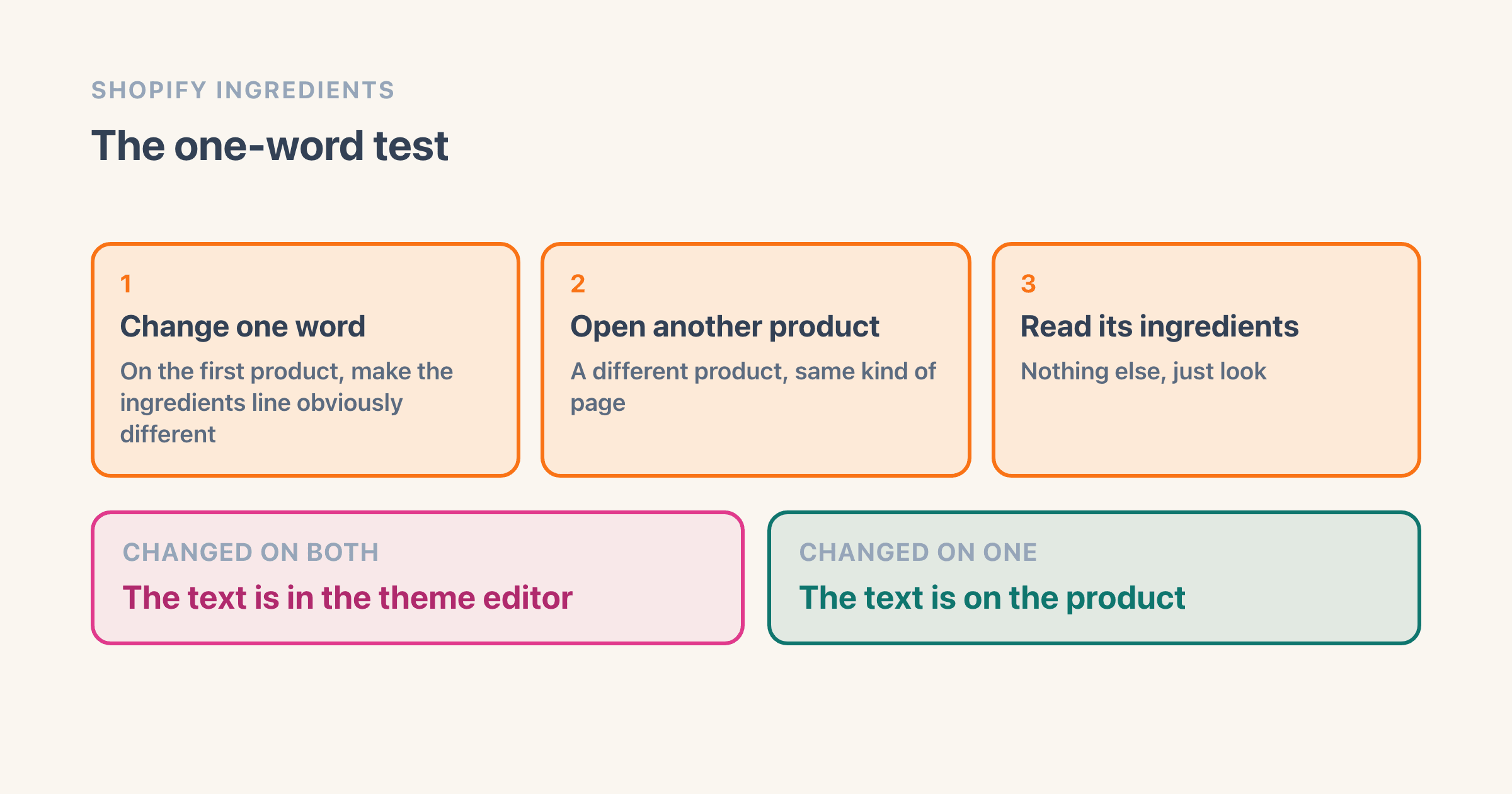
Change one word on the first product so the ingredients line is obviously different. Save. Open a different product and read its ingredients. Changed on both means the text lives in the theme editor. Changed on only the one you edited means it is already on the product, and you have a different problem - probably an empty field on the others.
The test is ours rather than Shopify's, and it has one honest limit: a product using its own alternate template will not show a change made to the default one, so pick two products you know are built the same way.
Does Shopify have an ingredients field?
Not one called that. What it has is a way to make one. Shopify's metafields page describes them as letting you "extend an existing platform data model, such as products, customers, and orders with your own custom data", and its own worked example is close enough to be funny: "You can then add different care instructions for one or all of your products."
There is also a built-in feature called product disclosures, which Shopify describes as being there "to display legally-required warning or safety information for your products". Worth knowing about, and worth reading before you assume it covers you: the three it names are a Prop 65 cancer warning, a small-parts choking hazard and a US consumer-product safety filing, and the words ingredients, allergens and nutrition do not appear anywhere on that page. Absence is not refusal - it also tells you to make your own entry - but it means an ingredients list is a field you define, not one Shopify ships.
Two limits on the field route. Shopify's page on defining fields says "You can have up to 250 metafield definitions", which is far more than a shop selling food or cosmetics will ever need. The other limit is not on any Shopify page: a definition is only the empty box, and filling and checking a value on every product is its own job, a real one once a catalogue runs into the hundreds. That job is not what this page is about.
How do I give each product its own ingredients?
Three moves, and only the first one is new to most people.
Define the field once. Shopify's help centre calls the screen "the Metafields page of your Shopify admin" and prints no menu path to it on any of the four custom-data pages I read. Even the page about navigating that part of the admin gives the path to Metaobjects next door and none to Metafields, so searching your admin for Metafields is the way in, whichever version you are on. Make it apply to products, give it a name a person would recognise, and pick a text type.
Fill it in on the product. Open a product and look for the Product metafields section - that is where Shopify's own instructions for product disclosures send you, and your new field appears in the same place. Type that product's ingredients. Then the next product, and its own list.
Point the page at it. In the theme editor, on the block where the ingredients should show, click the dynamic source button and connect your field. Shopify's sections and blocks page covers this under "Use metafields and metaobjects with dynamic sources". You do this once, on the template, and it is the right thing to do on the template: you are telling every product page to read its own value, not typing a value into all of them.
Why is my ingredients field not showing on the product page?
Three things to check, in this order.
- You are looking at a product with nothing in the field. Check one you know you filled in first. It is the cheapest way to rule out the connection.
- The block is still showing its own text. Connecting a dynamic source is a separate action from typing in the box, and a block that was never connected keeps whatever was typed into it. Look for the dynamic source button on that setting.
- There is no dynamic source button on the setting at all. Then that block cannot read a product field, and the fix is a different block or a theme change, not more data entry.
How do I fill in a whole catalogue without opening every product?
The bulk editor takes a column at a time. From your Shopify admin go to Products, tick the products you want, and click Bulk edit. Shopify's page for that screen then tells you to "click Columns, and then select all the properties that you want to add to the table", and the field you defined is one of those properties - the same page lists metafield validation errors among the reasons a save fails.
You get a grid: one row per product, one cell to type in, and a single Save. Forty products is an afternoon of typing and about four minutes of clicking.
The product CSV also carries it. Shopify's CSV guide says that "After a product metafield is defined, it's included in your product CSV exports", so an export gives you a spreadsheet with your new field already in it as a column.
Read that page's rules before you import one back, rather than my summary of them, because two of them bite:
- An import only overwrites when you tick Overwrite products with matching handles. With it ticked, "the values in the CSV file overwrite the values in the matching columns in the existing product list."
- A cell you leave empty is not skipped. "If a non-required column in the import CSV file is blank, then the matching value in the product list is overwritten as blank."
Export first and keep that file. It is a copy of your current values in exactly the columns an import would touch, which makes it the way back.
Does it matter legally if the wrong ingredients show?
If you sell food to shoppers in the EU, yes, and the rule is specific rather than vague. Regulation (EU) No 1169/2011 of 25 October 2011 on the provision of food information to consumers makes "the list of ingredients" and anything from its allergen annex mandatory particulars, and its Article 14, headed Distance selling, sets the rule for prepacked food sold that way: "mandatory food information, except the particulars provided in point (f) of Article 9(1), shall be available before the purchase is concluded". Before the purchase is concluded means on the page, not in the parcel.
It also says who carries it: "The food business operator responsible for the food information shall be the operator under whose name or business name the food is marketed or, if that operator is not established in the Union, the importer into the Union market." In most small stores that is the shop owner.
The dates are not in those sentences, and they are not a thing to guess at. The European Commission's own page on the rule says the regulation "entered into application on 13 December 2014", with the separate obligation to give nutrition information applying "since 13 December 2016".
Read the regulation itself, and ask your national food authority how it lands on your products. This page quotes the text and gives no legal advice. US requirements are a separate regime and nothing here covers them.
The practical point is smaller than the legal one. A shopper with a nut allergy reading a list that belongs to a different product is the failure mode, and one text box in a theme is enough to cause it across a whole catalogue at once.
When is the same text on every product the right answer?
Often, and this is the part the other guides skip. Eric Davis has a short piece that treats identical-on-every-product as a feature rather than a bug, which it is when the text is genuinely the same: a returns line, a delivery note, a sentence about how you make things. One edit, every product, no data entry. That is the box working as designed.
We built the same shape into our own app for clothing sellers, where the per-product text is what a garment is made of rather than what is in a jar. Its product safety details - the maker and the EU contact - are stored once for the whole store and inherited by every product, with a per-product override sitting empty until someone needs it. The store-wide default is the right home for an address you would otherwise mistype two hundred times. The composition is not, so that lives on the product. Same decision you are making, one field at a time.
Where those two lines go when nobody has built you a field for them is its own job, and not an obvious one. Shopify splits GPSR information across two places: a warning field it ships, and a metafield you make yourself.
Care instructions sit on the same fault line, and Shopify ships a field for them under a name most people never find. Adding care instructions to Shopify products walks the three steps and the two questions the mechanics do not answer: whether you can print the washing symbols, and what EU law actually asks a clothing seller for.
Per-product regulatory data has other traps that look like this one. Duplicated HS codes are the closest cousin: one code typed across a whole catalogue is wrong for most of the products in it, and unlike ingredients nothing on your storefront shows you that it is.
What should I do first?
Pick two products. Change one word on the first, open the second, and look. If both moved, you now know your forty ingredient lists are one box of text, and the field route above is a defined field plus forty rows in the bulk editor. If only one moved, stop reading this page - your data is already per-product and what you have is empty fields, which is a much better problem to have.
Frequently asked questions
What is the difference between a theme setting and a product field in Shopify?
A theme setting belongs to the template. Shopify's templates page puts it plainly: "When you edit a template, your changes apply to every page that uses the template." A product field belongs to one product, so it holds a different value on each one. Same words on screen, completely different storage.
Can I put ingredients in the Shopify product description instead?
Yes, and for a handful of products it is the fastest thing you can do - the description box is on the product, so it is already per-product. The reason people move off it is that the ingredients then sit inside your sales copy, where a theme cannot put them in their own place on the page and you cannot see at a glance which products are missing them.
Why do my ingredients repeat in the Sense theme?
Sense is not doing anything unusual. A merchant hit exactly this in February 2022 and the reply on that thread is the general rule: "Settings for a resource template are for all resources(products,collections,etc) that use that template." Any theme behaves the same way, because the behaviour belongs to Shopify's templates rather than to the theme.
Can two variants of one product have different ingredients?
A product field holds one value for the product. Shopify's metafields page lists variants as one of the things a value can be added to, so ask for the field on variants rather than on products when the recipe genuinely changes between sizes or flavours. Whether your theme reads a variant field is a separate question, and worth checking before you type 200 values.
Do I need an app to show different ingredients on each Shopify product?
No. The description box and product fields are both built in, and neither costs anything. Apps in this space sell the parts around the field - a ready-made layout, allergen highlighting, a nutrition table, or knowing which products are still empty. Get one product right by hand first, then you will know what you are actually shopping for.