Short answer
How do you put GPSR information on a Shopify product page?
Put the warning text in the Disclosures field
Shopify is specific about where warnings go, and only warnings. Its GPSR page says: "For legally-required product warnings specifically, use the Disclosures product metafield and metaobject entries."
From your Shopify admin, go to Products and click the product. In the Product metafields section, click Disclosures. Pick a type from the list, or click Add new entry and fill in Internal label, Title, Content and Jurisdictions. Click Save, then Save again on the product itself.
Expect to be writing your own. The disclosures help page names three ready-made types - Prop 65 Cancer Warning, Choking Hazard: Small Parts and CPSC eFiling Compliance - and none of the three is a European safety warning.
If it does not work
You cannot create the entry at all, and the plan is fine. Check which staff account you are logged in with: the help page states that to edit and create these entries, "staff members need the View and Create and edit products permissions, and the View and Create and edit content permissions" for metaobject definitions and entries.
The quieter failure is the storefront. Shopify writes that "Some sales channels, online store themes, or custom storefronts might not support certain display types for product disclosures", so a saved disclosure is not a visible one until you have looked at the live page.
There is also a shopping-flow trap worth knowing before you start. If people add this product to the basket straight from a collection page, they may never open the product page, and the same help page tells you to select Cart in that disclosure's Display preferences so it shows there instead.
How to undo it
The same help page carries a section called "Remove a disclosure type from a product". Taking it off one product leaves the entry itself alone, so everything else using it keeps working.
Create one metafield for the maker and the EU contact
The warning has a home. The rest of it does not, and Shopify's GPSR page hands that part back to you: "For any other types of required product information, include the details in your product description or by adding a metafield to your product."
A description works until the address changes. A metafield is a real named field, so you can see which products have it and which do not. Go to Settings, then Metafields and metaobjects. In the Metafields section, click Product metafields, then click Add definition. Type a name you will still recognise on the product page in a year, something like Product safety details, and click Save.
Decide one thing before you type that name: give the maker and the EU contact a single field between them. Our care-instructions walkthrough covers the same screen in more detail, on Shopify's ready-made Care guide definition rather than one you name yourself.
If it does not work
You build six definitions, one per line of the address block. Nothing breaks.
Your product page now has six boxes to fill in, six to connect in the theme editor, and six chances to leave one empty on a product nobody looks at again.
How to undo it
Open the definition under Settings, then Metafields and metaobjects, then Product metafields, and delete it. Deleting a definition takes every value stored against it, which is survivable on day one and expensive on day thirty.
Fill it in on one product and read it back as a shopper
Open a product, scroll to Product metafields, type the details in, and click Save.
Then read what you wrote. Shopify is specific about the shape of it: "The manufacturer's name, registered trade name or trademark, physical address and e-mail or other electronic contact information." A postcode with no street is not a physical address, and a mailbox nobody reads is not contact information.
Do one product before you do a hundred. Whatever wording you settle on here is the wording you are about to paste everywhere.
If it does not work
You fill in the maker block, stop there, and the product is still short. That is the right move only when the maker sits inside the EU.
Shopify's list adds a second block for everybody else: "If the manufacturer is not located in the European Union, the EU Responsible Person and their contact details."
How to undo it
Clear the box and click Save. The field stays on the product with nothing in it, and nothing else about the product changes.
Connect the field to the product page in the theme editor
Typing the details stores them. It does not show them to anybody, and this is the step people skip.
Shopify puts one condition on it, on its metafields walkthrough: "If you have a theme that supports dynamic sources, then you can connect most metafields to your theme by using the theme editor." Check that first, because a theme without them never shows you the control the last click needs.
Go to Online Store, then Themes, edit the theme, and in the Product information section add a block and point it at your field with the Connect dynamic source icon. The disclosure from step one is different: it has a place on the page already, and the disclosures help page carries its own section on displaying disclosures to customers, with separate notes for the online store and for the Shop app.
If it does not work
The block is there, you saved, and the storefront shows nothing. Check the product first: a field with nothing in it has nothing to draw, so open the product and confirm there is a value before you touch the theme again.
If there was no Connect dynamic source icon to click in the first place, that is the dynamic-sources condition above. It is a theme change, and no amount of editing the product will move it.
How to undo it
Remove the block in the theme editor. The details you typed live on the products rather than in the theme, so they survive it. That separation is the whole reason this route is worth the setup instead of pasting an address into a description.
Write it in the language of the country you are selling into
Shopify's fourth requirement carries a condition and a language rule in one line: "If required, instructions, warnings, and safety information in the language of the EU country or countries in which the product is sold."
Read the "If required" part as written. It is doing real work in that sentence, which is why this step needs a decision from you rather than a checkbox.
The boxes themselves are simple. The Content field on a disclosure holds one piece of text, and a metafield holds one value, so a shopper in Vienna reads whatever you typed in English until something translates it.
If it does not work
Your German storefront is live, the block appears exactly where you put it, and the safety line is in English. Nothing is broken. One box holds one value, and adding a language is a separate job from filling in a field.
How to undo it
There is nothing to reverse. This step is a decision about which countries you sell into, and the words you typed in steps one and three stay exactly as they are whatever you decide.
What exactly has to be on the product page?
Shopify publishes the list on its own GPSR page, and the framing sentence carries as much weight as the items. It asks you to "Ensure that product labels and website include" them, and website is in that sentence alongside the label sewn into the garment or printed on the box.
Two more obligations sit underneath the list and are not page work at all: report accidents involving products to EU authorities, and cooperate with product recalls.
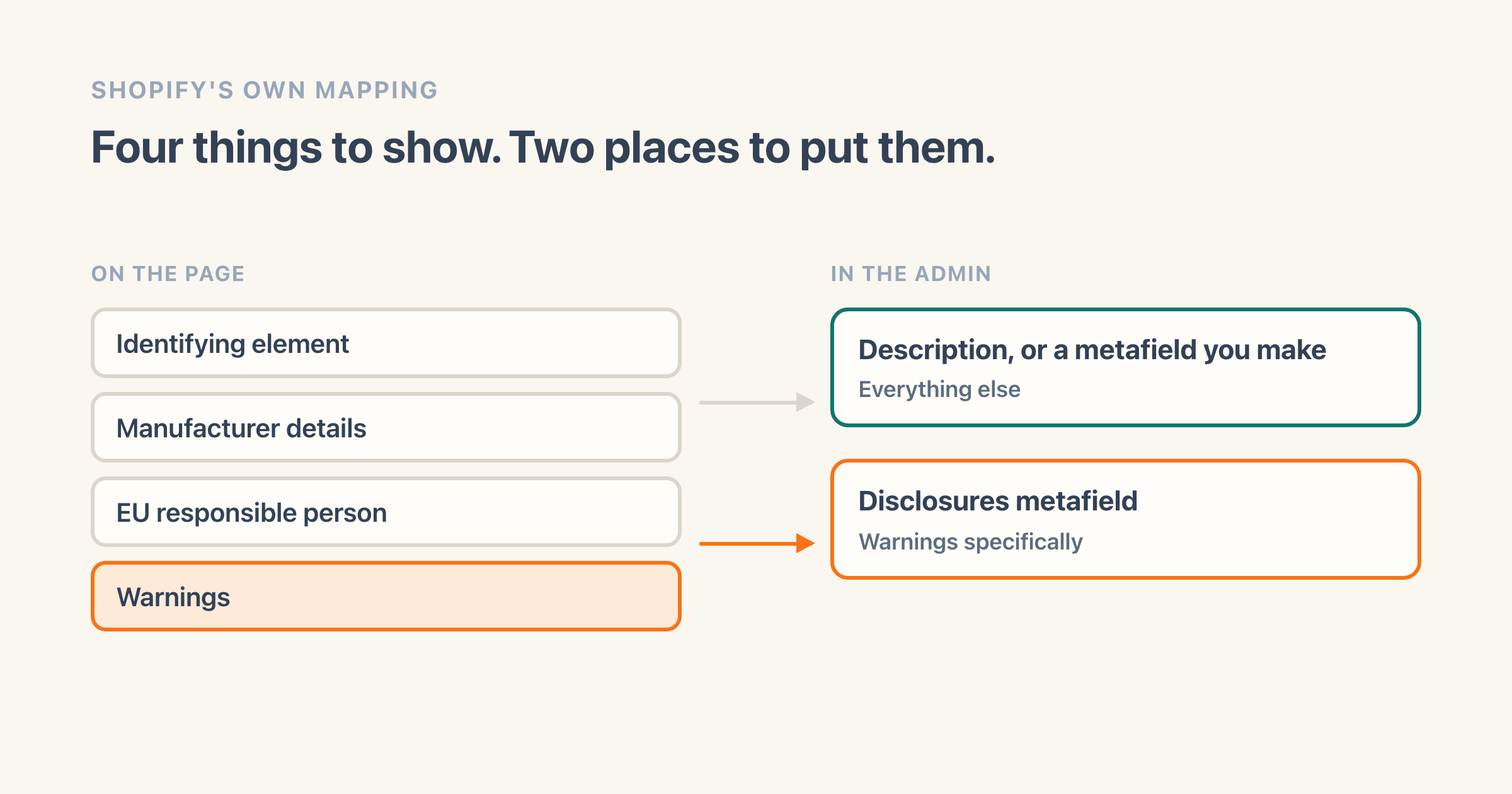
Only the warnings have a purpose-built home in the admin. The same page sends them to the Disclosures product metafield and hands everything else back to you, to go in "your product description or by adding a metafield to your product".
Read that split narrowly, because Shopify writes "For legally-required product warnings specifically". The instructions and the safety information sitting in the same bullet as the warnings are not warnings, so they go with everything else.
The four that are page work read like this, in Shopify's words.
- "An identifying element, such as picture, type, batch, and serial number."
- "The manufacturer's name, registered trade name or trademark, physical address and e-mail or other electronic contact information."
- "If the manufacturer is not located in the European Union, the EU Responsible Person and their contact details."
- "If required, instructions, warnings, and safety information in the language of the EU country or countries in which the product is sold."
Who is the EU responsible person, and does Shopify give you one?
Somebody inside the EU whose job is to be reachable. Shopify defines it in the same breath as the requirement: "The EU Responsible Person is a person or entity located in the European Union that the seller designates to act as a point of contact with the EU authorities."
Shopify does not supply one, and it says so in writing rather than leaving a merchant to work it out: "Although Shopify does not currently offer such services directly, third-party compliance tools might be available on the Shopify App Store."
That reads like an instruction to go and hire somebody, and it is worth knowing it might already be somebody you deal with. The European Commission uses a different name for the role and names four kinds of business that can hold it: "A responsible economic operator in the EU (an EU manufacturer, importer, authorised representative or a fulfilment service provider) shall be entrusted with tasks relating to the safety of each product covered by the regulation."
Neither page maps one name onto the other, so this page does not either. If you already ship through an EU importer or an EU fulfilment centre, that is a conversation to have with them and with your own adviser before you buy anything.
What the Shopify admin needs from you is narrower and much more boring: a name, a postal address and an email address you can stand behind.
Does this reach me if I sell into the EU from outside it?
Part of the answer is on the European Commission's own page, and it is about the product rather than about you. Its Access2Markets page says the regulation "applies to consumer products, but those designed exclusively for professional use which subsequently reach the consumer market, should also comply with it."
What neither that page nor Shopify's tells you is which role your own business holds in the chain, or which one your supplier holds. That part is a question for your adviser, and nothing here answers it for you.
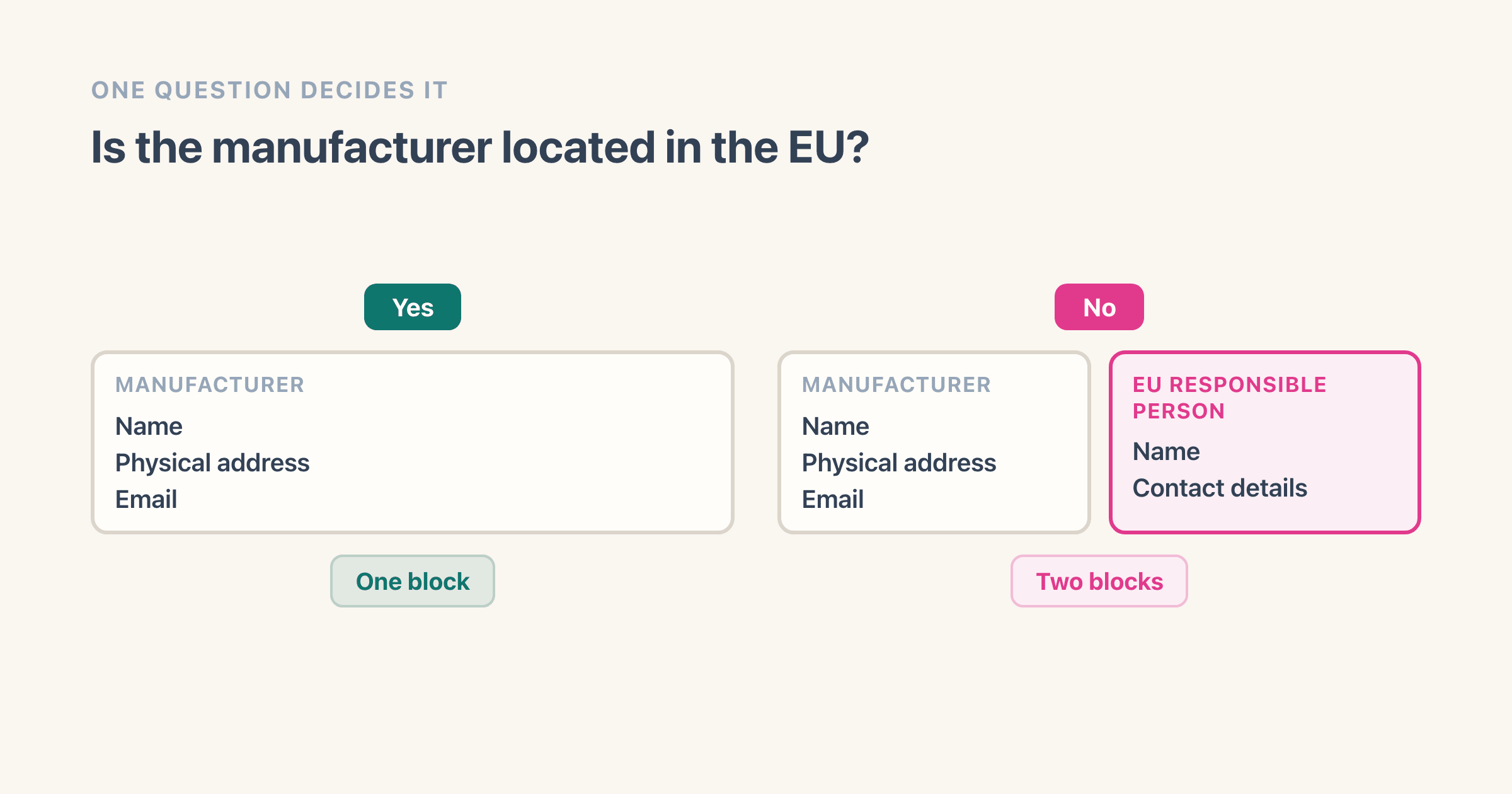
What both do settle is what changes on the product page when the maker sits outside the EU. Shopify's list asks every seller for the manufacturer's "name, registered trade name or trademark, physical address and e-mail or other electronic contact information", and asks for a second block on top of it when the maker is elsewhere: "If the manufacturer is not located in the European Union, the EU Responsible Person and their contact details."
For a US or UK brand shipping to shoppers in Europe, that is the difference between one block on the page and two. It is also the only part of this question the admin lets you act on.
When did the GPSR start applying?
13 December 2024. The European Commission's own Access2Markets page, published on 6 January 2025, names the instrument as "Regulation (EU) 2023/988 of the European Parliament and of the Council of 10 May 2023" and states it is "Applicable from the 13 December 2024".
Shopify dates it the same way in merchant language, describing a regulation that "came into effect in December 2024".
One boundary is worth stating plainly, because this is a page about a law sitting on a shop's website. The requirements above are Shopify's wording of what a seller has to show, not the regulation's. We could not open the regulation's own text on the day this page was written, so nothing here is quoted from it. Treat this as a summary for merchants and not as legal advice, which is what Shopify says on its own page in blunter terms: "You should consult your own legal counsel."
What happens when the same maker address has to reach 400 products?
The metafield route stores the value on the product, so an address that is identical across your whole catalogue gets stored four hundred separate times. That costs nothing on day one and quite a lot on the day it changes.
Running a store where the same supplier details sit on a few hundred products, the pass that goes wrong is never the first one. It is the second, eighteen months later, when the maker moves and nobody can remember which products carry the old address.
The bulk editor takes the edge off. Tick the products in your Products list, click Bulk edit, open the Columns menu and add the field you made, then fill the column down. Our care-instructions page walks that route and the spreadsheet route in full, including what a blank cell does to an import, and it is worth reading before you upload anything.
Shopify also documents adding disclosures through a product import file, which is the faster half of the job when one warning covers hundreds of products.
The disclosures side has one thing the metafield side does not, and it is the boring thing that matters at scale: the help page carries a section called "Filter your product list by disclosure type", so the products still missing a warning are findable from the Products list.
Where on the product page does it have to sit?
Shopify's list says "product labels and website" and stops there. None of the four items names a position on the page, a section, or a distance from the buy button.
So this is a judgement call rather than a rule you can fail. The thing worth weighing is what each piece is for: a warning that changes whether somebody should buy the product belongs where they will read it before they decide, and a maker's postal address does not need to compete with the price.
The disclosures route makes part of the decision for you, since disclosures have their own place on the product page. It also gives you a Cart option under Display preferences, which exists for stores where shoppers add to the basket straight from a collection page and never open the product page at all.