Short answer
How do you add a care instructions field to a Shopify product?
Create the Care guide field once, for the whole store
From your Shopify admin, go to Settings, then Metafields and metaobjects. In the Metafields section, click Product metafields, then click Add definition.
In the Name field, type Care guide. Shopify's own three-step walkthrough describes what happens next: "A suggested standard definition pill appears below the field. Click the Care guide pill to use the standard definition." Click it rather than building your own, because the ready-made one already knows what shape the answer takes.
Then click Save. You are done with this screen forever - this is a store-wide setup step, not a per-product one.
If it does not work
No pill appears under the Name field, so you are staring at an empty definition form wondering what to pick.
Check the spelling first: the suggestion matches on what you type, so Care Guide and care instructions do not both find it.
If you build a custom definition instead, nothing breaks, but you become the person who decides its content type and its rules, and a later theme block may not offer it as neatly.
How to undo it
Go back to Settings, then Metafields and metaobjects, then Product metafields, open the definition and delete it. Deleting a definition also drops the values stored against it, so do that before you have typed anything into 200 products, not after.
Fill it in on one product and look at what you wrote
From your Shopify admin, go to Products and, in Shopify's words, "Click a product that you want to have care instructions". Scroll to Product metafields, click Care guide, type the instructions, and click Save.
Do one product before you do fifty. What you type here is what a shopper reads word for word, so this is the moment to settle your house wording: "Machine wash, max 30 °C" or "cold wash only", never both across the same catalogue.
If it does not work
You cannot find Product metafields on the product page. It sits below the fold, under the product's own fields, and it only appears once a definition exists - so if step one did not save, there is nothing here to fill in.
How to undo it
Clear the box and save. The field stays available, the product simply has no value in it, and a product with an empty Care guide shows nothing rather than showing an empty heading.
Connect it to your product page in the theme editor
This is the step people skip, and it is why a merchant can fill in twenty products and still see nothing on the storefront. Typing the value stores it. It does not display it.
Shopify puts one condition on this step, on the same page as the walkthrough: "If you have a theme that supports dynamic sources, then you can connect most metafields to your theme by using the theme editor." Check that before you start, because a theme without them never shows you the icon the last click needs.
Go to Online Store, then Themes. "Next to the theme that you want to edit, click Edit theme." Use the drop-down at the top of the screen to select Products, then Default product.
In the Product information section, click Add block, then Collapsible row. Enter a heading such as Care. Shopify then says: "Next to row content, click the Connect dynamic source icon and select Care guide." Click Save.
If it does not work
You added the block, you saved, and the storefront still shows nothing.
The usual cause is the theme, not the block: you edited a copy rather than the published theme, or you edited the Default product template while the product you are testing uses a different one.
The other cause is an empty value. A collapsible row wired to a field with nothing in it has nothing to draw, so it either renders an empty heading or disappears, depending on the theme.
A theme with no dynamic-source support stops you a step earlier than either of those. You get the Collapsible row block, and next to row content there is no Connect dynamic source icon to click, so there is nothing to wire the field to. That one is a theme change rather than a settings change.
How to undo it
Open the theme editor, click the block, and remove it. Your typed care instructions are untouched - they live on the products, not in the theme, which is the whole reason this arrangement is worth the three steps.
Check it on a phone, at the price
Open a product on your phone and look at where the care block landed. Themes tend to drop a new block at the bottom of the product information section, which on a phone is several thumb-swipes below the buy button.
Drag it up so it sits near the price. A shopper deciding whether a jumper is machine washable is deciding before they add to basket, not after.
If it does not work
The block reads fine on your laptop and is three screens down on a phone. That is the default position doing exactly what it was built to do, and it is a drag-and-drop fix in the same editor.
How to undo it
Drag it back. Block position is a theme setting, so nothing about your products changes either way.
Why does the same care text show on every product?
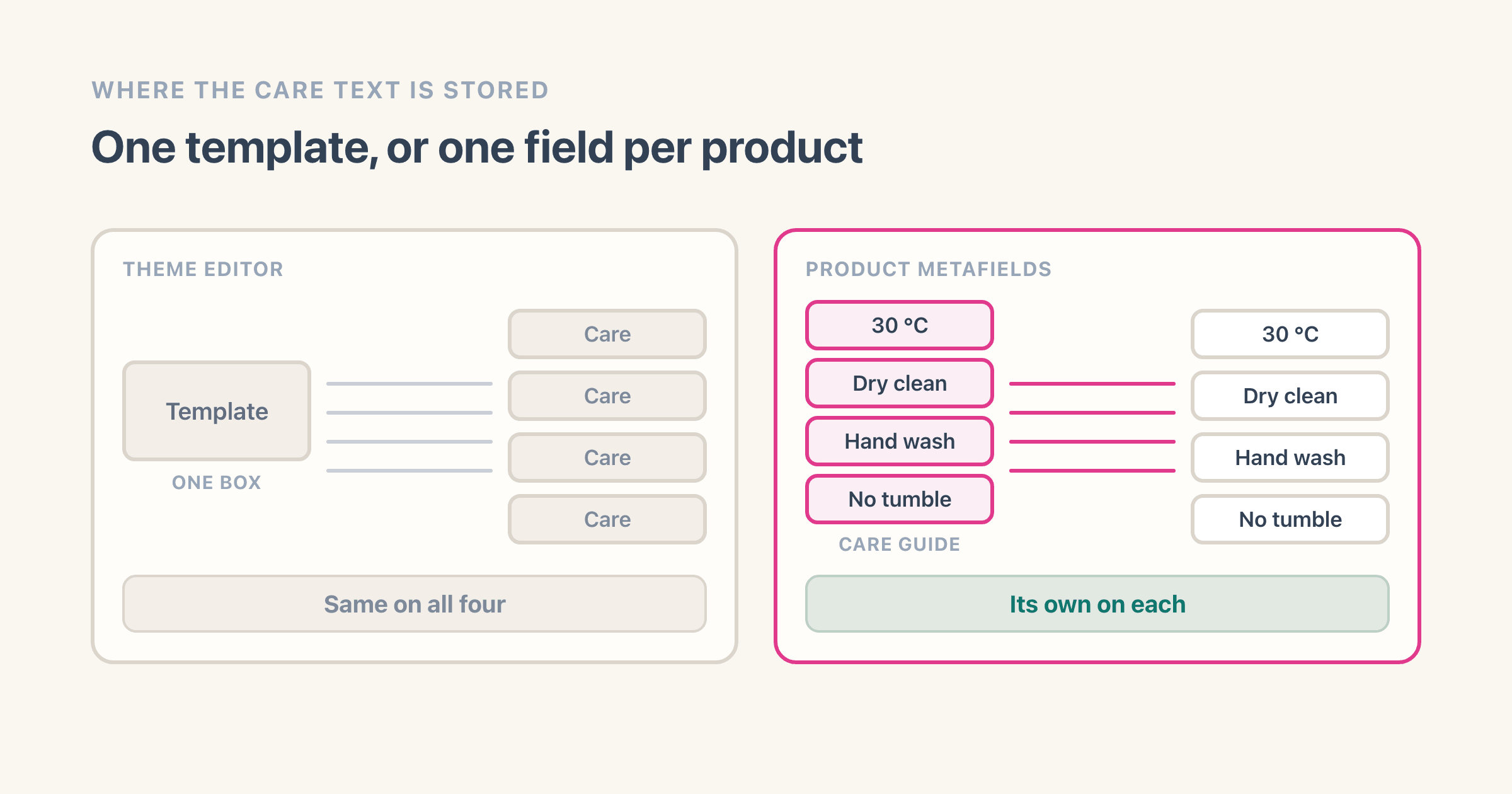
Because you typed it into the theme rather than onto the product. A theme setting belongs to the template, and one template serves every product page in the store, so one box of text lands on all of them.
The Care guide field above is the opposite arrangement: it belongs to one product and holds a different value on each. That is the entire difference between the two boxes, and on screen they look identical.
The quick test takes a minute. Change the text on one product, then open a second product. If the second one changed too, you are editing the template. If it did not, you are editing the product.
This exact confusion has its own page, written for ingredients rather than care but describing the same mechanism: why your Shopify ingredients show the same on every product walks the test and the fix.
How do you add care instructions to a whole catalogue?
One product at a time is fine for twenty. It stops being fine somewhere around eighty, and there are two routes past that point.
The first is the bulk editor. Tick the products in your Products list, click Bulk edit, open the Columns menu and pick Care guide from the properties it offers, then type down the column. It is faster than opening each product, and it is still typing.
The second is a spreadsheet import. Once the Care guide field exists it comes through in your product CSV export, so you fill in the column you already have and send the file back.
One thing to check before you upload. An import only rewrites products you already have when you tick Overwrite products with matching handles, and with that ticked, a column you include but leave blank overwrites what was there with nothing.
Neither route writes the sentences for you, and that is the real cost. Sixty products with genuinely different fabrics need sixty decisions, and the temptation is to paste one generic line onto everything, which is worse than leaving it empty because it is wrong on the silk.
- Group first, then type. Most catalogues collapse into four or five care patterns, not sixty.
- Settle the wording before you start, not halfway down the column.
- Leave the field empty on anything that genuinely has no care instructions. An empty field shows nothing; a guessed one shows a guess.
Can you put laundry symbols on a Shopify product page?
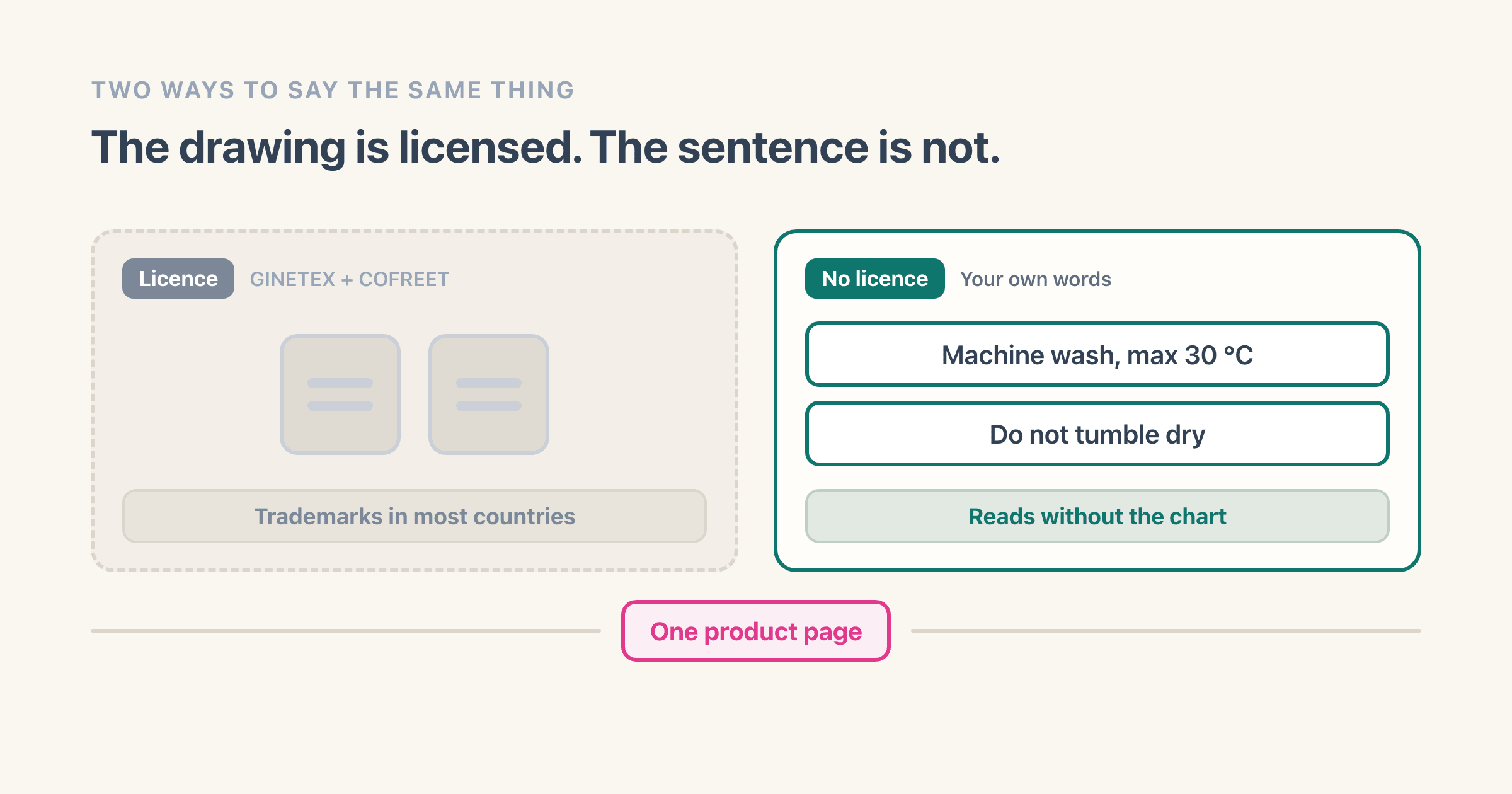
Not freely, and this is the part almost nobody writing about Shopify care instructions mentions. The washing symbols on the label in your jumper are registered trademarks, not public-domain clip art.
GINETEX, which owns them, states it plainly on its care labelling page: "The five care symbols are protected trademarks in most countries." The same page continues: "They may not be reproduced, issued or used without a special license agreement with GINETEX, co-owner of the trademarks together with COFREET."
It also spells out the consequence: "Unauthorized or improper use of the symbols may lead to legal action." Nothing on that page carves out an exception for a small shop or a single product page, and it publishes no fee, so what a licence would cost you is a conversation with GINETEX rather than a number anyone can quote you.
The same page notes the symbols "are also at the origin of the EN ISO 3758 international standard", which is why the standard and the trademark get talked about as if they were one thing. They are not: the standard describes the system, the trademark covers the drawings.
The practical answer for a product page is to write what the symbol means. "Machine wash, max 30 °C" and "Do not tumble dry" carry no licence, and they read better to the large majority of shoppers who have never memorised the chart.
What happens to care instructions when you sell in more than one language?
Whatever you typed is what everyone reads. The Care guide field holds one value, so a German shopper on your German storefront sees your English sentence unless something translates it.
Shopify's translation tools can carry a product field into another language, and that means someone writes each sentence again in each language, or pays for it to be written.
For care text specifically this is more annoying than it sounds, because the sentences repeat. "Do not tumble dry" is the same sentence on four hundred products, and you translate it once per language and then paste it four hundred times.
This is the one part of the job that is genuinely better handled by picking from a list than by typing, because a list of fixed instructions can be pre-translated once and reused everywhere.
Does EU law require care instructions?
No. The European Commission's own Your Europe textile label page, stamped Last checked: 13/07/2026, gives a textile label three jobs, and writing care instructions is not one of them.
The first is what the product is made of. The label must "explain the composition of the fabric", and that composition is "written in decreasing percentage order". The second is legibility, which the page spells out as "clear and legible text, including uniform lettering" in the same font, size and style.
The third is the only one that mentions care at all, and it is a layout rule rather than a duty to write anything. The label must "contain a clear separation between the information on textile composition and other information, such as product care". Care may sit next to the fibres. It may not be mixed in with them.
One more line on the page is a language requirement. "If you plan to sell your products in one or more EU countries, you must translate the text in all the official national languages where the textile products are made available to the consumer." A cotton t-shirt sold into France carries its composition in French, and carries nothing at all about washing.
What that page does not do is say where any of this has to appear when the sale happens online. It is written about the label, and it says nothing specific about distance selling, so putting the composition on the product page as well is a sensible thing to do rather than a rule this source establishes. This is a summary for merchants, not legal advice, and the regulation itself and your own adviser are the authorities on your own business.