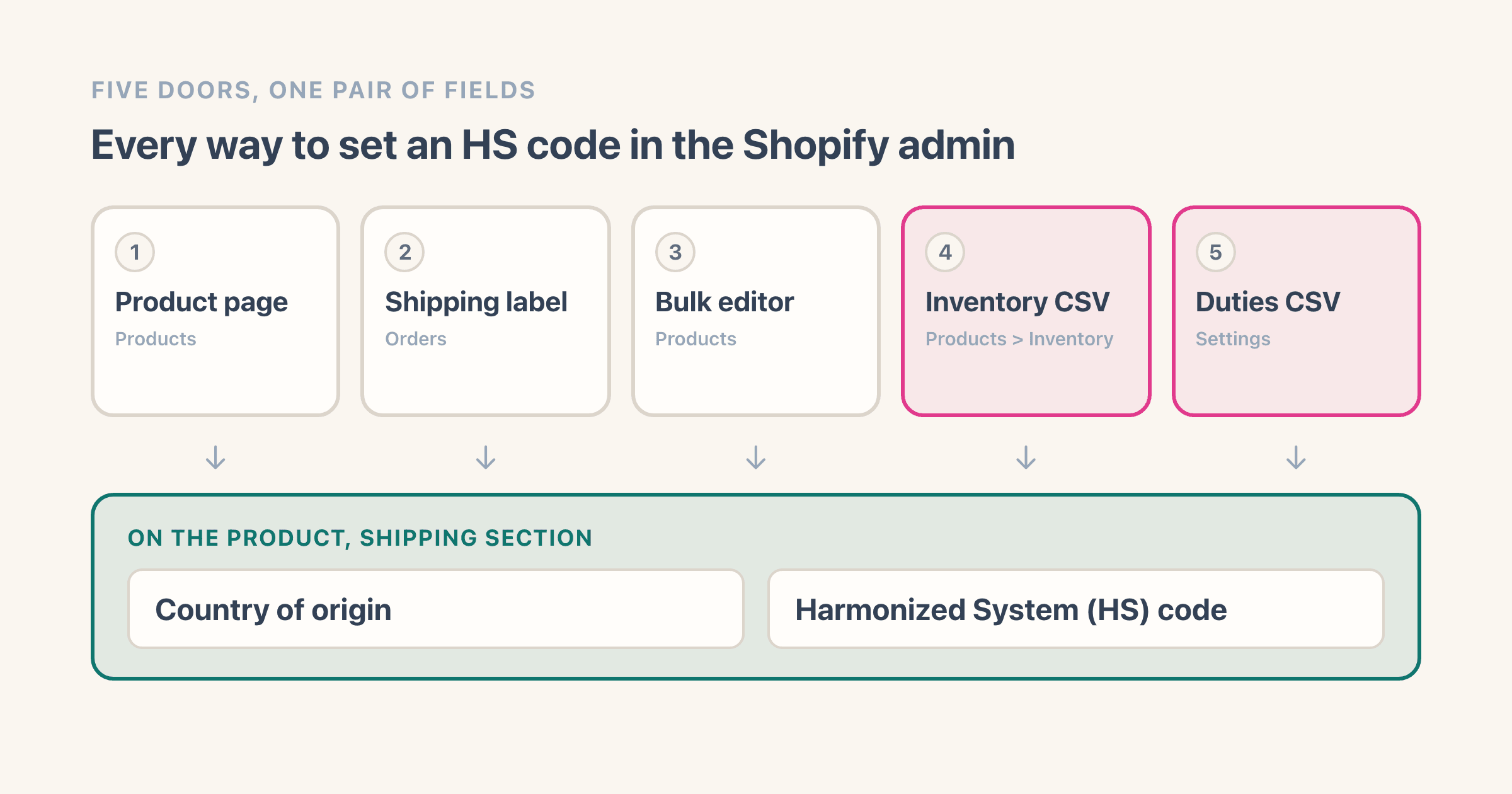
A parcel to Germany comes back six weeks later with a customs sticker on it, and the thing that caused it is a six-digit number nobody filled in. In Shopify that number lives on the product page. Open the product, go to the Shipping section, make sure Physical product is on, then fill in Country of origin and the Harmonized System (HS) code box. For a whole catalogue there is a CSV that does this in one upload, and it is not the product export - that file has no HS code column at all.
Where the HS code field lives on a Shopify product
Two boxes, side by side, in the Shipping section of the product page: Country of origin, which is a drop-down, and Harmonized System (HS) code, which is a text box.
They only exist when the product is a physical one. Shopify's step is "In the Shipping section, make sure that the Physical product setting is activated", and if that switch is off there is no Shipping section on the page to scroll to.
The text box does more than take a number. Shopify's instruction is that "If you don't have an HS code for your product, then start typing a description of your product to search for the appropriate code", so a description like wool hat runs a search instead of leaving you looking at an empty box.
Five routes in the admin write to those two boxes, and the picture above is all of them: the product page, the shipping-label screen, the bulk editor, and two different CSVs. Three of them share one Shopify help page. The two CSVs are documented on two other pages entirely, which is most of why this topic is confusing.
Does Shopify require an HS code?
Yes, for anything crossing a border, and Shopify says so in one line at the top of its HS codes help page: "Harmonized System (HS) codes are required for international shipments."
The sentence under it is the one worth reading twice. Shopify's rule is that if you ship internationally, each of your products must include an HS code. Each product, not each order, which is why this is a catalogue job rather than a fulfilment job.
No plan gate is attached anywhere on that page. The only access rule it names is a staff permission - anyone fulfilling international orders needs the View products permission to see and use a product's HS code.
One change raised the stakes on it recently, and Shopify prints that one in a caution box on its duties and import taxes page: "As of August 29, 2025, de minimis doesn't apply to shipments to the United States. Duties and import taxes apply to all US imports, regardless of the value of the shipment."
De minimis is the value below which a country waives duty. Shopify publishes a table of them and warns in the same breath that the table "doesn't constitute tax or customs advice" - which is how to read any number in this area, this article included.
How do you add an HS code and country of origin to one product?
Six steps, and the labels below are the ones on Shopify's page rather than a paraphrase of them.
- From your Shopify admin, go to Products, and click the product you want to edit.
- In the Shipping section, make sure Physical product is activated. If the section is missing: the product is not marked physical, and no amount of scrolling will find the boxes.
- Click Country of origin and pick a country or region from the drop-down. This is where the product was made, not where you ship it from.
- In the Harmonized System (HS) code box, type the code, or start typing a description of the product to search for one.
- Optional, and only if you sell into places that want more detail: click the horizontal menu icon, then Add HS codes by country/region, then Select, then choose the country. If your country is not in the list: Shopify's rule is "You can only select countries or regions from your markets", so add the market first in Settings > Markets.
- Click Add.
To undo any of it, clear the box and save. A country-specific entry is removed from the same Add HS codes by country/region window you created it in, and removing it does not touch the six-digit code sitting on the product itself.
How do you add HS codes to a whole catalogue?
Say you have 412 products and eleven of them have a code, which is the situation that sends people looking for an article like this one. Shopify gives you two routes, and one of them is documented twice under two different sets of button names.
The bulk editor is the quick one. Shopify's HS codes page says to check the products, click Bulk edit, click Columns, and in the Shipping section click Harmonized system code. Its duties page describes the same screen as Edit products, then Add fields, then HS code. Same editor, two sets of button names on Shopify's own help pages, both live on 11 August 2026, so click whichever of those two words your admin is showing you.
Running a store that turns over about $5 million a year, the part of this that actually bites is never the first product. It is the four hundred behind it, and an export that comes back without the column you opened it for.
Which CSV file actually has the HS code column?
For 412 products, a spreadsheet beats a grid. This is where almost every guide on this topic goes wrong, including Shopify's own blog, which says only that "You can bulk-add HS codes and country of origin via CSV, or add them manually on the product's page" without naming which CSV.
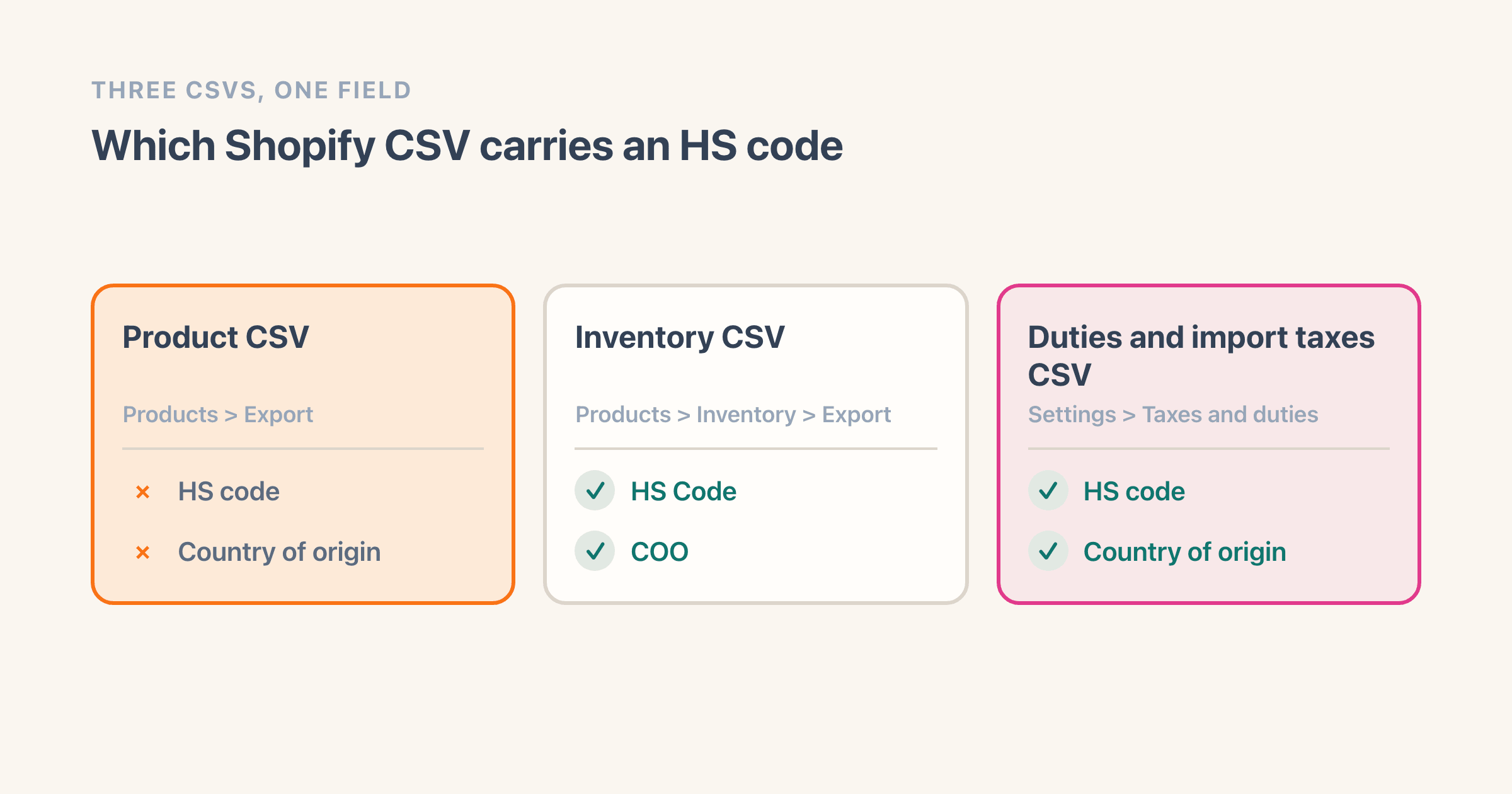
Column names in the drawing are Shopify's own spellings, which is why the inventory file says COO where the duties file says Country of origin. Both work. The product export is the one that quietly does nothing.
I checked all three on 11 August 2026. The product CSV reference introduces its column table with "The following table outlines all potential columns in the product CSV", and searching that same page for HS, Harmonized, Country of origin, customs and tariff returns nothing at all. The inventory CSV carries a column called HS Code and one called COO, both marked optional, and that file will write them back: its page says you can leave the On hand (new) column empty when you are updating things like bin names, HS codes or country of origin rather than quantities.
How do you export and import the duties CSV?
The third file is the one built for this job, and Shopify says so: "The intended use for the duties and import taxes CSV file is to update HS codes and the COO for your products." Getting it:
- Settings > Taxes and duties, then in the Duties and import taxes section click Manage.
- In the Product information section, click Update with CSV, then Export, then pick a file format and click Export products. Shopify sends the file to you in an email rather than putting it in your downloads.
- Fill in the Country of origin and HS code columns in a spreadsheet.
- Back in Product information, click Update with CSV, then Import, then Add file, Upload, and Import. A second email tells you when it has finished.
Two limits worth knowing before you start. Shopify's own note points you elsewhere for anything beyond these two fields: if you want to change values other than the HS code and the COO, it tells you to "use the inventory CSV instead". And neither duties page says whether duties collection has to be switched on before the Update with CSV option appears. I looked on both and there is no sentence either way, so if the option is missing from your Settings page, switching duties collection on is the first thing to try rather than a bug to report.
If the export comes back with no HS code column: you exported from Products rather than from Settings. That file has never had one. A merchant called Kyle asked about exactly this in March 2021 - "Is there an efficient way to update / upload HS Codes and Country of Origin?", noting that neither the inventory nor the product CSV was capturing the fields, and adding that "A bulk edit is not as efficient for syncing with an ERP or WMS so ideally this would be possible using a csv update". The reply naming the Settings route was posted in March 2026. Five years between the question and the answer.
To undo an import: keep the export you downloaded before you edited it, and re-import that file. There is no revert button, and the previous state of 412 rows is not recoverable any other way.
Six digits or ten? What Shopify's field takes
Shopify describes the code as "an international trade code, usually six digits long". Usually is doing real work in that sentence: six digits is the part the world agrees on, and countries add their own digits on top.
The route for those extra digits is the country-specific option in step 5 above, and Shopify describes what goes in there as the standard six-digit code, typically with extra digits or letters added on the end. Its page states no maximum length for the main box, so I am not going to tell you there is one.
That gap is old and merchants have felt it. In January 2021 one asked "Shopify limits you to 6 digits in the HS Code field. Why?" and spelled out the problem underneath: "We now require 8 to ship from the UK to Europe. 10 digits to ship to other destinations worldwide."
Which one Shopify actually uses at checkout is documented plainly. "When a country-specific HS code exists, that code is used to calculate duties. If a country-specific HS code doesn't exist, then the six-digit global code is used instead." So the six-digit code is the floor, and a country-specific entry overrides it for that country only.
What does Shopify do with the code, and what happens when it is missing?
Two jobs, and they are worth separating because most stores only ever touch one of them.
The first is the customs declaration on a Shopify Shipping label. Open an unfulfilled order, click Create shipping label, and in the ITEMS section click Edit customs information.
You add a code per item there. Tick Save shipping info to product details and it goes back onto the product, so you never type it twice, and under Update customs declaration form you choose Update multiple orders or Only this order.
The printed form comes from the order screen, via Print customs form. Shopify's page on printing shipping documents does not itemise which fields land on the paper, so I will not either.
What happens to duties at checkout when there is no code?
The second job is the duty estimate at checkout, and only if you have turned on duties collection. That is where a missing code actually costs you something.
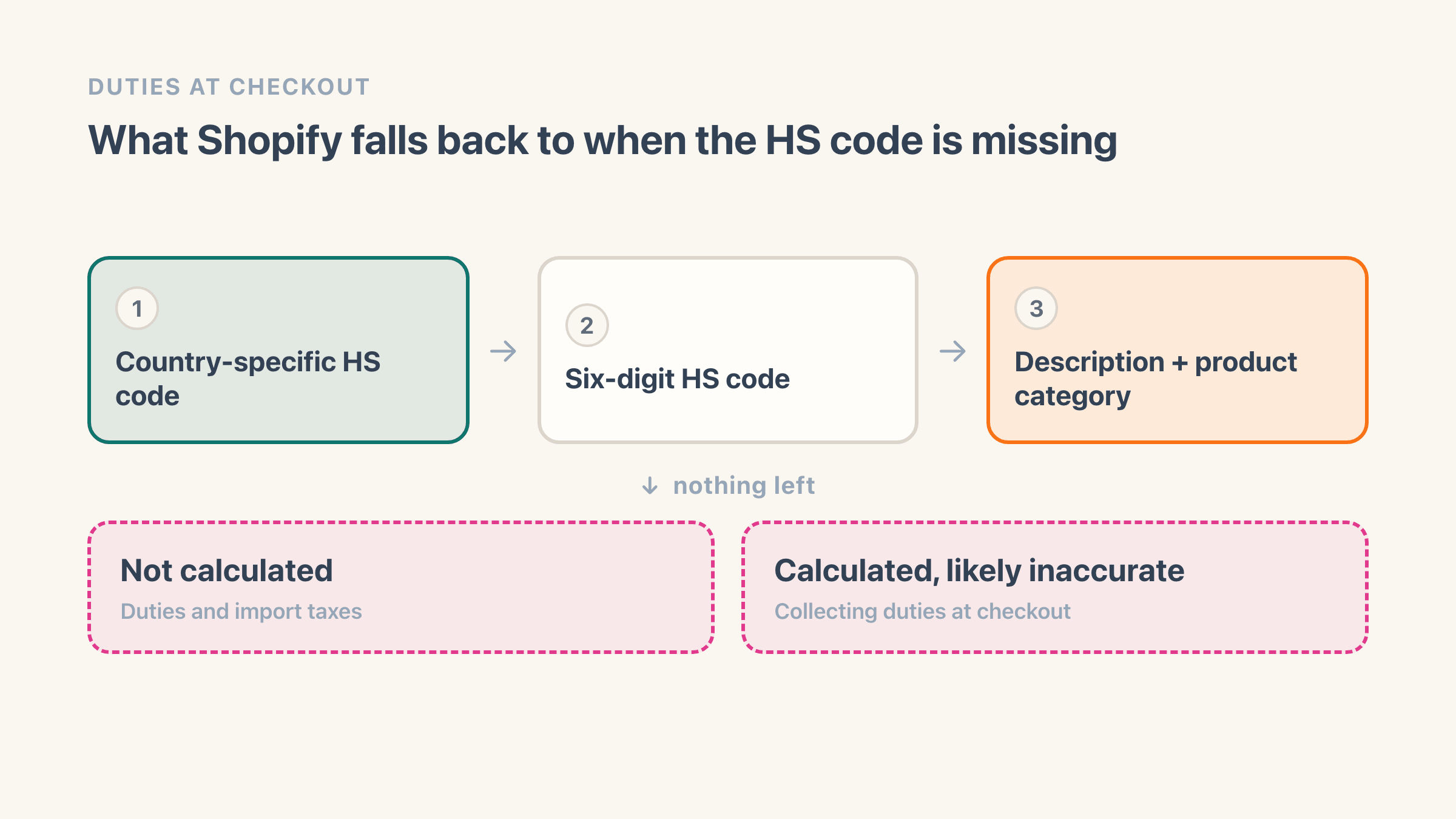
The fork at the end is two different Shopify help pages describing the same empty product. Whichever is right, the fix is the same, and it is the first box in the chain.
Both pages agree on the middle of the chain: "If a product is missing an HS code, then calculations are based on the product's description and product category instead." Then they split. The duties and import taxes page says that with no code, no description and no category, duties "aren't calculated for that order even if you've set orders from a country or region to collect duties and import taxes at checkout". The page on collecting duties at checkout says they "are still calculated, but are likely to be inaccurate".
I pulled each of those twice, from its own page, on 11 August 2026. They still disagree, and I would not build a shipping policy on either sentence until Shopify picks one.
The consequence is not in dispute either way, and the collecting-duties page puts it in a caution box: "Inaccurate product information, such as a missing country or region of origin or an incorrect Harmonized System (HS) code, might result in additional duties being charged to the customer upon delivery." That is a courier knocking on your customer's door for money, which is the version of this problem that generates an email.
What else should you know before you turn duties on?
One setting takes the sting out of the origin half. You can set a default country of origin for the store - COO is Shopify's shorthand for it - and the rule is narrow: "The default COO is used only when a product doesn't have a COO assigned to it." So it is a backstop for the products you have not got to, not a substitute for filling them in.
Duties collection is not free, either. Shopify's note reads "Effective February 2, 2025, the transaction fee for calculating duties and import taxes has been temporarily lowered to 0.5%" - temporarily is Shopify's word, so check the current figure before you price around it. It joins the other cuts Shopify takes per sale, and if you are quoting duty-paid prices across a border it belongs in your cost of goods sold alongside freight and inbound duty rather than in a column of its own.
Where do you look up the right code?
Here is where I stop being useful, deliberately. Which code your product belongs to is a classification question, a wrong answer has a price attached, and I am a merchant rather than a customs broker. Even Dutiable's guide to this, one of the better pages in the field, carries the line "consult a licensed customs broker for binding classification".
What I can do is point you at the lists themselves. Four official ones, in the order most people need them:
- The World Customs Organization, which maintains the six-digit system everything else is built on. This is the link Shopify itself gives you.
- The US Harmonized Tariff Schedule, searchable, and also Shopify's own suggestion.
- The UK Trade Tariff: "Use this service to find a commodity code for goods you're importing to or exporting from the UK."
- Access2Markets, the European Commission's portal, which searches trade conditions and rules of origin by product.
And the cheapest first pass is the one already in your admin: type a plain description into the HS code box and let Shopify's search suggest candidates, then check the candidate against the list for the country you actually ship to.
What to check when the code does not stick
Five things, in the order they go wrong.
- The Physical product switch is off, so there is no Shipping section and no box.
- You exported from Products instead of Settings > Taxes and duties, so the file has no column to fill.
- The country you want is not in the country-specific picker, because it is not one of your markets yet.
- The code is in, duties are still not showing at checkout, and duties collection was never turned on - that is a separate switch under Settings > Taxes and duties.
- Duties collection is on and checkout still shows nothing. Shopify's requirements for collecting duties rule out stores on Shopify Fulfillment Network, and if you buy shipping labels through Shopify your carrier has to support duty-paid (DDP) labels.
One thing that is not on that list, because it fails the other way round: a value that looks right on every product because it is not on the products at all. That is what happens to ingredients and other product text typed into the theme editor, and the HS code box is safe from it only because it lives on the product record rather than in a theme block.
Then go and count. Export the duties CSV, sort by the HS code column, and see how many of your products come back blank. If it is 401 out of 412, that number is your afternoon, and the profit margin calculator will tell you what the duty-paid price on the ones you sell most of still leaves you.
Frequently asked questions
Do I need an app to add HS codes in Shopify?
No. The box is on the page of every physical product, the bulk editor can show it as a column, and Shopify ships a dedicated CSV for it at Settings > Taxes and duties. Apps exist for guessing codes from your product titles, which is a classification job rather than a data-entry one, so treat that as the thing you would be paying for.
Does the HS code show on the customer's invoice?
Shopify's own help pages document the code going into the customs information for a shipping label, not onto a customer-facing invoice. Invoicing apps add it: Sufio, for one, publishes a guide to putting HS codes and country of origin on invoices and says the feature needs its Professional plan or higher.
Can I use one HS code for all my products?
You can type the same code into every product, and it will be wrong for most of them. The code describes what the thing is, so a store selling one narrow line of goods may genuinely share a code across the range, while a general store almost never does. Wrong codes are what Shopify's own caution about "additional duties being charged to the customer upon delivery" is describing. The storefront version of the same mistake is product text that comes out identical on every product, which at least you can see.
Is an HS code required for all Shopify international orders?
Shopify's help page on HS codes states it flatly: "Harmonized System (HS) codes are required for international shipments." It attaches no plan requirement to that. Domestic orders are outside the sentence entirely.
Where do I find the HS code field if my product has no Shipping section?
The Shipping section only appears once Physical product is switched on. A digital download or a service has no Shipping section, so it has no HS code box either, which is correct - nothing physical is crossing a border.
Why does my country not appear in the country-specific HS code list?
Because Shopify limits that picker to places you already sell to. Its wording is "You can only select countries or regions from your markets", so the fix is to add the market first, in Settings > Markets, and then come back to the product.