You log into Shopify, click Products, and scroll. The same beach-tote photo is on six different listings. You don't know which one is the master. None of them have alt text. And somewhere along the way, Google Image Search has quietly stopped surfacing your product photos because every shot is a near-duplicate of something else on your own catalog.
This article walks through how to find those duplicates - the manual way for small catalogs, a free scanner for any size store, and the perceptual-hashing approach that catches near-duplicates byte-comparison misses. By the end you'll know which images to delete, which to keep, and how to stop new duplicates from creeping in.
Why duplicate product images quietly hurt your store
A few duplicate photos look harmless. At a few hundred SKUs they cost real money, and most merchants don't catch them until traffic or conversion takes a measurable hit.
The damage shows up in four places:
- Google Image Search demotes pages whose images already exist elsewhere on the web - including elsewhere on your own catalog. Image impressions flatline.
- Every duplicate still has to be downloaded and decoded, which bloats Largest Contentful Paint (especially on mobile). Shopify's own performance guidance for themes flags image weight as the biggest performance lever you have.
- A shopper opens two of your products in adjacent tabs, sees the same hero image, and quietly bounces. We've watched it happen on session recordings.
- You can't tell which of three near-identical files is the one on the live PDP, so when you "edit the image", the live page often still shows the old version.
Nobody catches any of this manually past 100 SKUs. You only notice when something visibly breaks.
The fastest way: a free scanner that reads your public products feed
If you want a fast answer for any store size, we built a free duplicate image scanner that runs entirely on our servers and emails you a report in under five minutes.
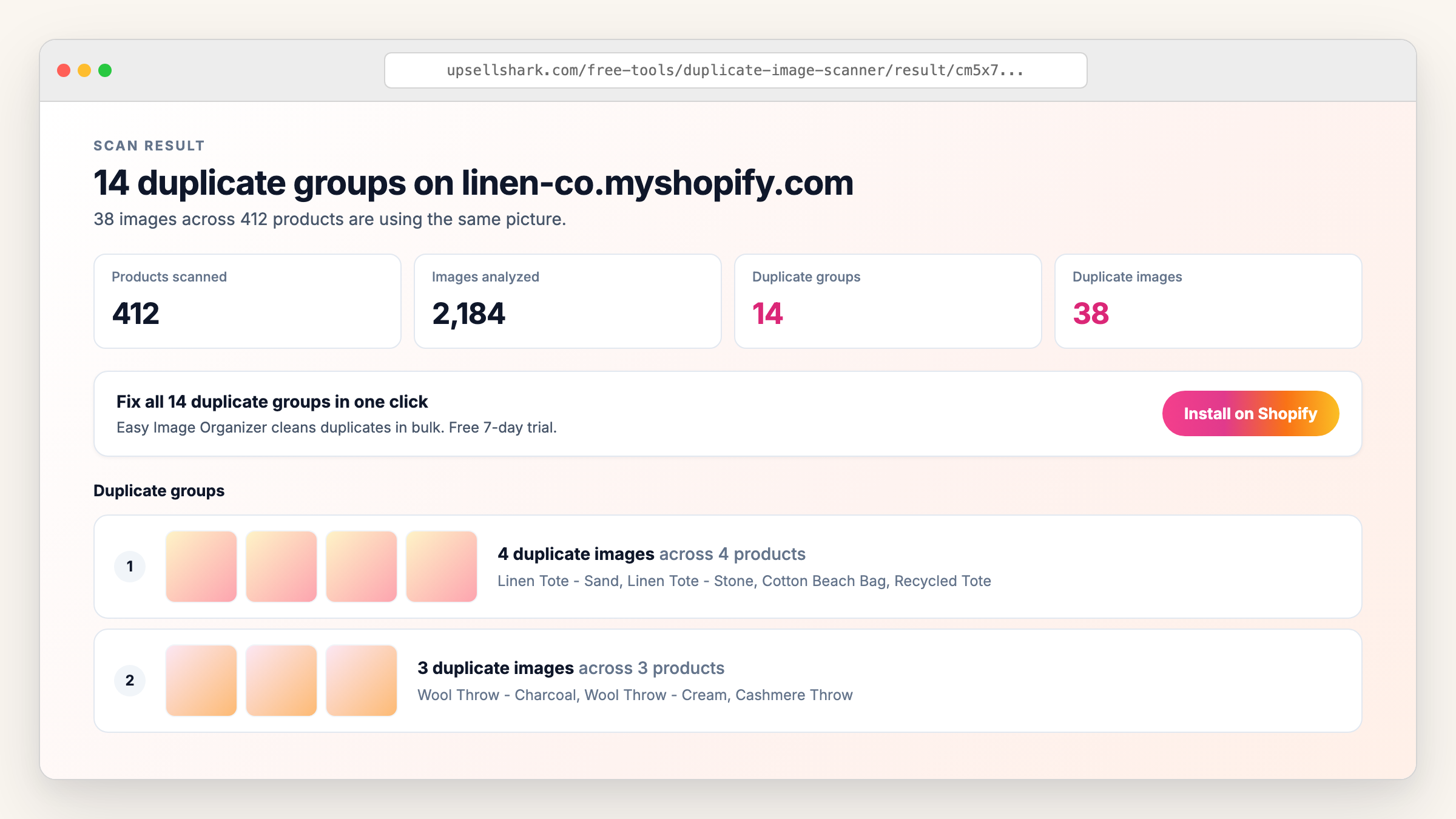
You paste your store URL, drop in your email, and the scanner reads the public products feed (the same data Google sees) and computes a perceptual hash for every product image up to 500 products. Duplicates are clustered and emailed to you with thumbnails, product titles, and a link to the full result page. No install on Shopify, no admin access, no credit card.
It runs against mystore.myshopify.com URLs and custom domains alike. The 500-product cap is enough to surface the worst offenders on any catalog. For full-catalog scans, the in-Shopify version of the scanner has no cap.

Fix everything with Easy Image Organizer
Free 7-day trialBulk reorder, deduplicate and SEO product images
Reorder product images across hundreds of products, find duplicates with a perceptual scanner, and edit alt text and filenames in bulk.
- Bulk drag-and-drop reorder
- Duplicate image scanner
- Auto-optimize alt text + filenames
How to find duplicates manually in Shopify admin
If your catalog is under 50 products, you can audit manually. The process:
- Go to Products in Shopify admin
- Click into each product, scroll to the Media section
- Visually compare the images, noting any that repeat
- For known-duplicate filenames (e.g.,
IMG_4521.jpgshowing up on multiple products), use the search bar at/admin/productsto filter
Two things to watch for. First, image position matters. The image in slot 1 is the PDP hero. If you delete position 1 by mistake, whatever sits in position 2 becomes the new hero - and that's often a back-of-product shot or a swatch. Always check position before deleting.
Second, manual review only catches duplicates within a single product. Cross-product duplicates - the same supplier photo on six different SKUs - are the worst case, and they're invisible to manual review unless you happen to remember every photo you've ever uploaded. For anything past about 50 SKUs, manual review stops scaling.
How perceptual hashing catches near-duplicates that byte comparison misses
Byte comparison only catches identical files. A scanner that compares file hashes catches the case where the same image was uploaded twice, but it misses the case where the same image was re-saved at a different size, recompressed, or had a tiny watermark added. All of those produce a different file hash, but to a human they're obviously the same photo.
Perceptual hashing fixes this. The algorithm reduces an image to a fingerprint based on what it looks like - the distribution of light and dark regions, dominant edges, color zones. Two images with the same content produce the same (or very close) perceptual hash regardless of size or compression.
So:
- Same photo at 800px and 1600px - same perceptual hash
- Same photo recompressed at 70% vs 90% quality - same perceptual hash
- Same photo with a 50px watermark in the corner - almost-same perceptual hash (Hamming distance ≤ 2)
- A genuinely different photo of the same product type - different perceptual hash
Our free scanner combines a 16-bit pHash with a coarse 4×4 color fingerprint. That second layer prevents the algorithm from grouping, say, a navy rope with a white rope when the structural shapes are similar but the colors aren't. The combination matches Easy Image Organizer's in-app scanner, so the free tool's results translate directly into one-click cleanup if you install the app.
What to do once you find them
About four out of five duplicate groups need to go in the trash. The rest are intentional variant shots that happen to look alike, plus a small rare bucket where something else still references the file. Each case needs a different action.
When the duplicates are real, just delete them
The common cases: a supplier photo uploaded twice, an accidental drag-and-drop that doubled the file, a theme import that copy-pasted images across products, a CSV re-import that added new copies without overwriting the originals. These have no business being in your catalog. Delete them and keep one as the master.
The mistake that catches most merchants is deleting the wrong copy. Each product shows whichever image is in position 1 as its PDP hero. If you delete the position-1 image by accident, position-2 promotes up automatically, and you'll often discover the new hero is a back-of-product shot or a swatch only after a customer complains. Always set positions intentionally before you delete: drag the image you want to keep into slot 1 first, then delete the others.
When the duplicates are intentional variant shots
Sometimes the perceptual hash flags images that really should look alike. A size-10 boot photographed the same way as the size-8. A black t-shirt and a navy t-shirt shot against the same backdrop. The structural shapes match, so the hash groups them, but the small differences matter when a shopper picks a variant on the PDP.
Leave these alone. The real fix is tightening the variant-image assignment so each variant points at its correct shot. In Shopify admin, open the product, scroll to Variants, click into the variant, and confirm the Image field references the right file. Once each variant has its own image, the scanner is correct that the images "look alike" but you don't want to act on it. If you're using Easy Image Organizer, mark the group as "intentional" so it stops appearing in future scans.
When something else still references the file, compress instead of delete
The third case is rare but real. If the duplicate image URL is hardcoded into a Liquid template, referenced by a third-party app you no longer maintain, or linked from external sources like email campaigns or affiliate sites, deleting the file breaks all those references. Customers see broken image icons, your transactional emails show empty placeholders, and your tracking pixels point at 404s.
The workaround is to replace the file with a compressed version at the same URL. Same dimensions, same path, just smaller bytes. The Shopify CDN serves whatever bytes you've last uploaded to that URL, so the references keep working but the page-weight problem goes away. Compress externally with Squoosh or TinyPNG, re-upload through Shopify Files (for product images) or via shopify theme push (for theme assets), then spot-check the references to confirm they still resolve.
When to upgrade from a one-off scan to ongoing monitoring
The free scanner is great for a one-off audit. Where it falls short is ongoing operations. If you add new products weekly, supplier-photo imports overlap with images already in your catalog and you find out months later. Multi-vendor stores have the same problem at higher velocity, since each supplier uploads the same stock photo independently. And once your catalog passes 1000 SKUs, manual review stops working entirely - even a quarterly scan misses what arrived between scans.
For ongoing monitoring you want a tool that lives inside Shopify and re-scans on a schedule. Easy Image Organizer is what we built for this. It bypasses the 500-product cap of the free scanner, runs against your full Shopify admin (not just public products), and ships with the one-click bulk cleanup we use on our own catalogs.
What to do next
Run a free scan against your store. Takes 60 seconds, no install, report by email in 5 minutes. You'll find out exactly how many duplicate groups exist and which products are involved.
Run the free duplicate image scanner →
Once you have the report, decide whether the cleanup is small enough for the admin (under 10 groups, under 50 SKUs) or worth doing in bulk via Easy Image Organizer. Then queue the pass that always follows a de-duplication, which is writing the alt text nobody ever filled in on the images you kept. And if duplicates are your first catalog cleanup, take a look at the rest of our free Shopify tools too.
Fix everything with Easy Image Organizer
Free 7-day trialBulk reorder, deduplicate and SEO product images
Reorder product images across hundreds of products, find duplicates with a perceptual scanner, and edit alt text and filenames in bulk.
- Bulk drag-and-drop reorder
- Duplicate image scanner
- Auto-optimize alt text + filenames
Frequently asked questions
Why doesn't Shopify show me duplicate images automatically?
Shopify treats every uploaded image as unique at the admin level. The image CDN deduplicates at the storage layer (so you're not paying for the same bytes twice), but nothing surfaces "you've uploaded this 6 times" in the Products admin. Built for upload speed, not catalog hygiene.
Is it safe to delete duplicate images on Shopify?
Yes, with one caveat. Always check which image is in position 1 (the PDP hero) before deleting. If you delete the position-1 image, whichever image was in position 2 becomes the new hero, and that's often a back-of-product shot or a swatch you don't want as the main view. Set positions intentionally before bulk-deleting.
Do duplicate product images affect SEO?
Yes, in two ways. Google Image Search demotes pages whose images already appear elsewhere, especially on the same domain. And duplicates inflate page weight, which hurts Core Web Vitals (specifically Largest Contentful Paint), which is part of Google's ranking signal for product pages.
What's a perceptual hash and why does it matter for duplicates?
A perceptual hash is a fingerprint of what an image looks like, not what bytes it contains. The same photo saved at two different resolutions produces two different file hashes (because the bytes differ) but the same perceptual hash. Without perceptual hashing, scanners miss the most common kind of duplicate: the same image uploaded at slightly different sizes.
Can I find duplicates across different products, not just within one product?
Yes, and that's actually the more important case. Manual review catches "this image is on this product twice", but rarely "this stock photo of a beach tote is on six unrelated products." Cross-product duplicates are typically supplier images or variant images that leaked. Tools that hash every image in the catalog at once catch them in seconds, and the free duplicate image scanner does this by default.